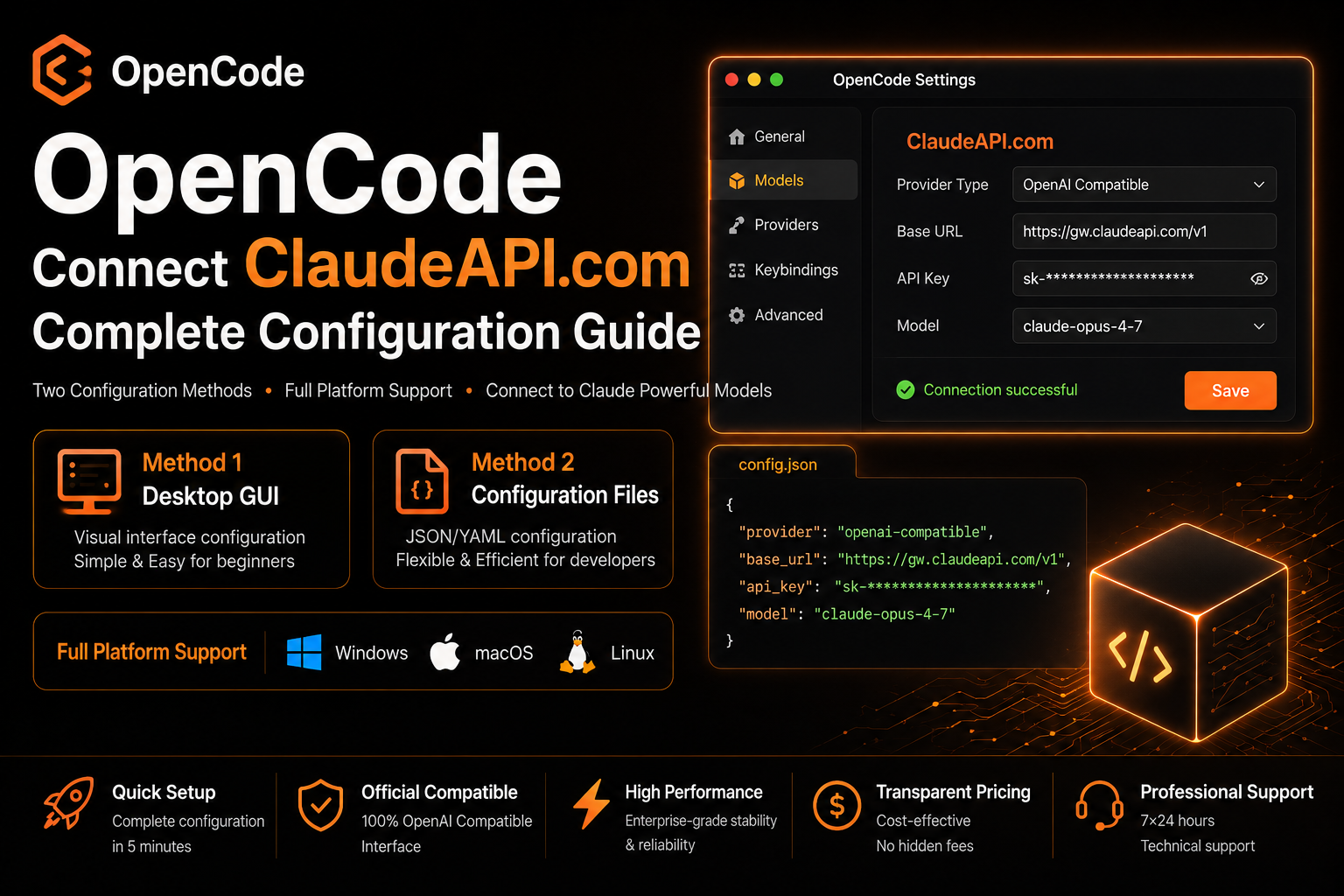
OpenCode supports two setup options: the desktop GUI for quick configuration, and a JSON config file for developers who manage multiple projects or server-side environments. This guide covers both methods, with step-by-step instructions for Windows, macOS, and Linux.
1. Prerequisites
Before you start, make sure you have:
- Registered an account at claudeapi.com and created an API Key
- Downloaded and installed OpenCode
ClaudeAPI.com connection details:
| Field | Value |
|---|---|
| Base URL | https://gw.claudeapi.com/v1 |
| API Key | Available in your ClaudeAPI.com dashboard, usually in the format sk-xxx |
2. Method 1: Configure OpenCode via the Desktop GUI
The OpenCode desktop app includes a visual provider configuration flow, so you do not need to edit JSON manually. You can connect ClaudeAPI.com in just a few steps.
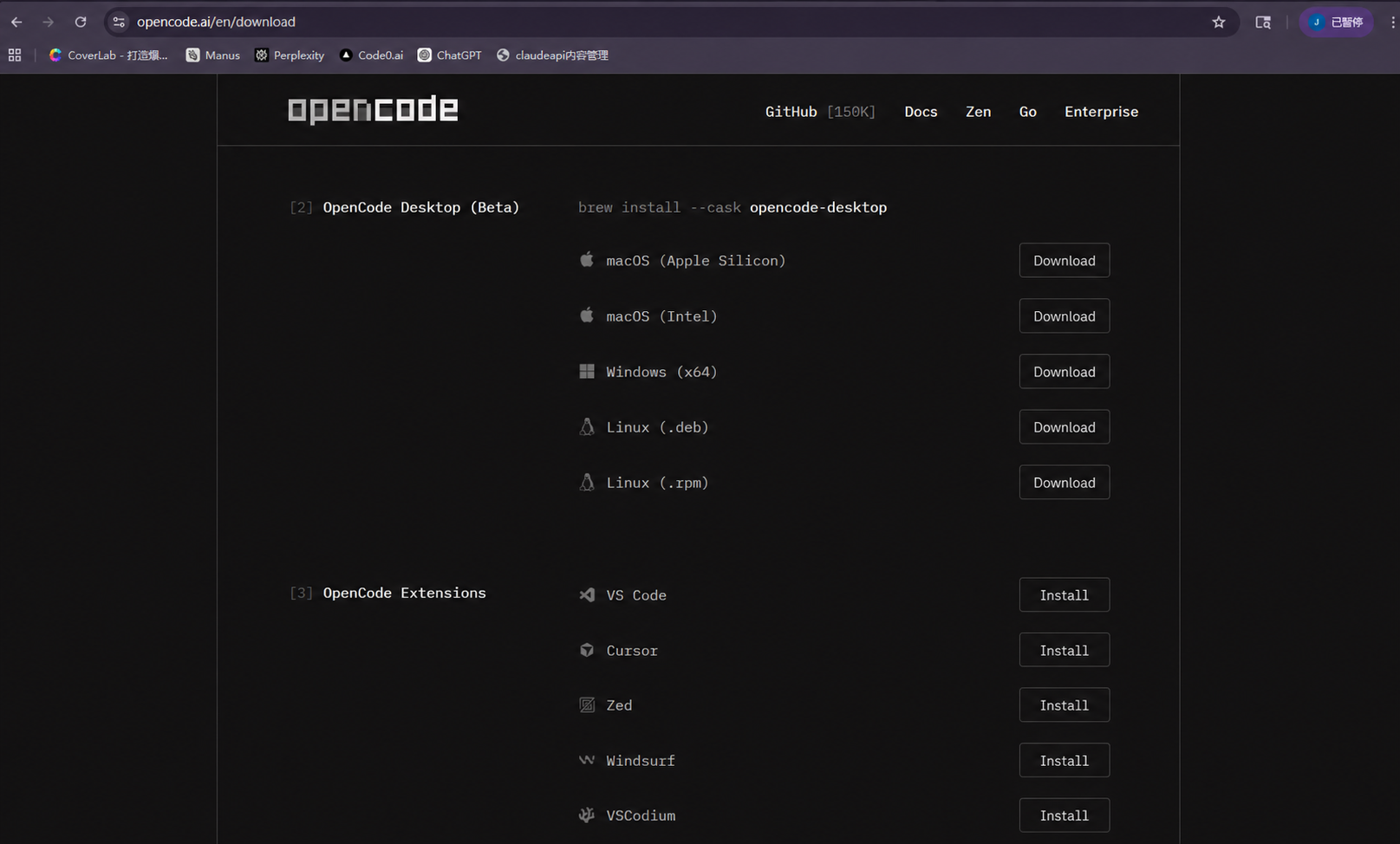
Steps
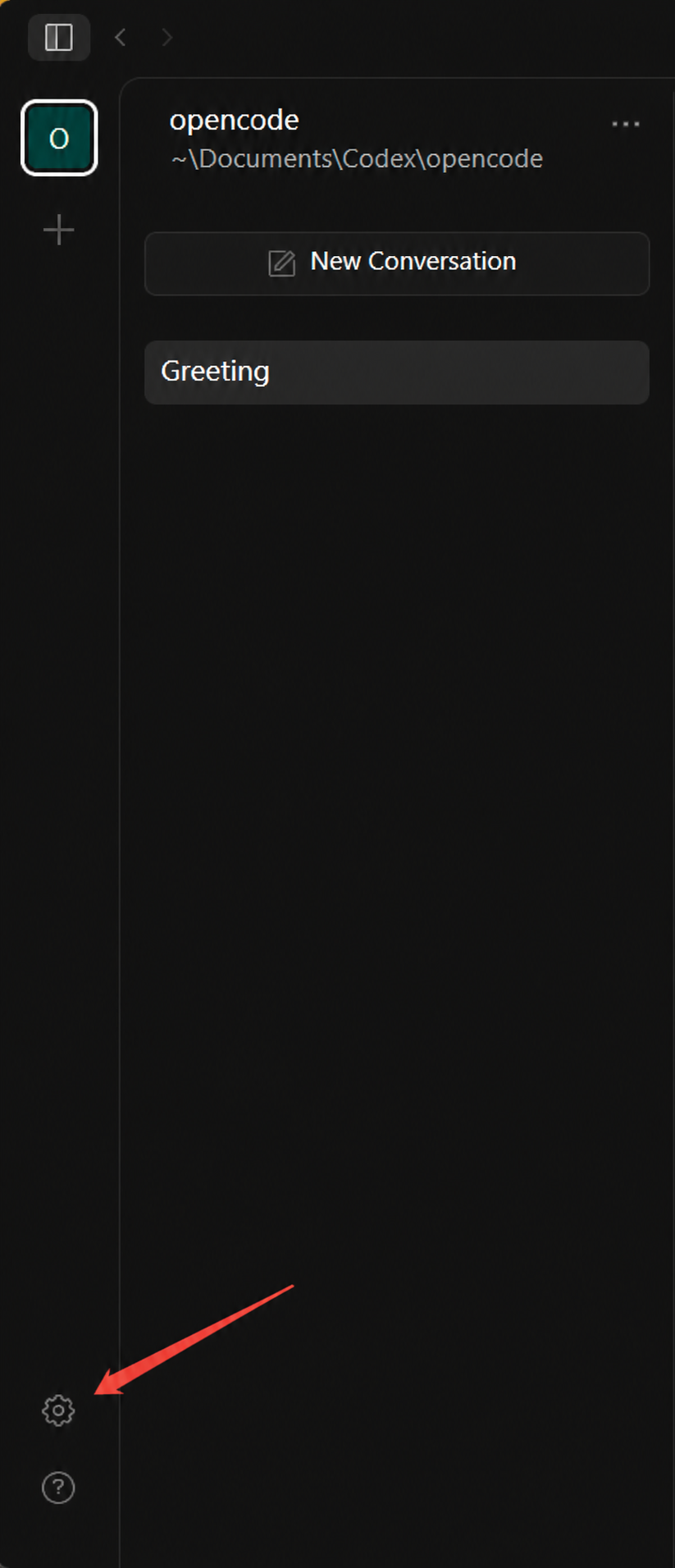
Step 1: Open provider settings
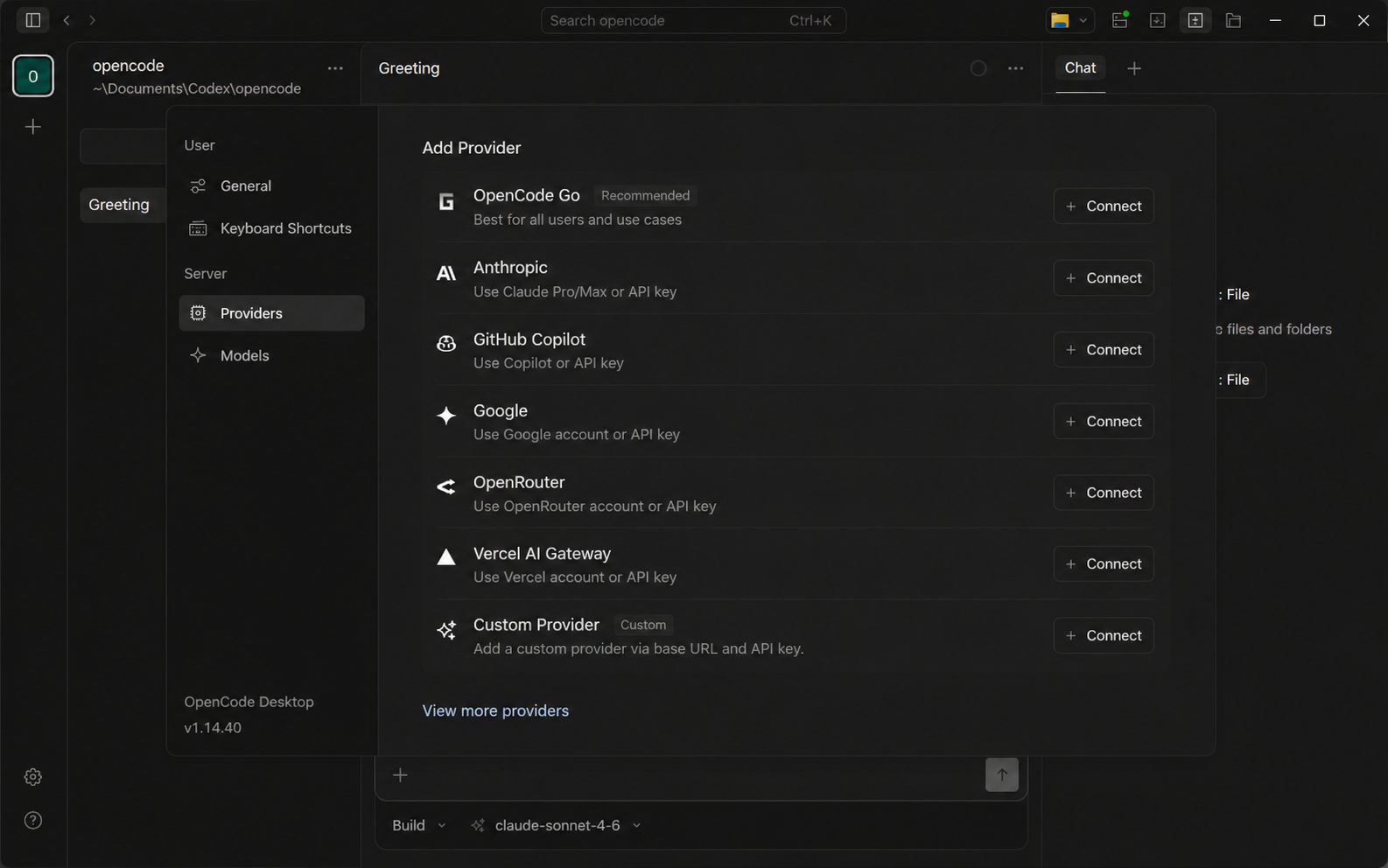
Launch OpenCode, click the settings icon(⚙) in the lower-left corner, open the provider management page, then click “Add Provider” or choose a custom provider option.
Step 2: Fill in the provider fields
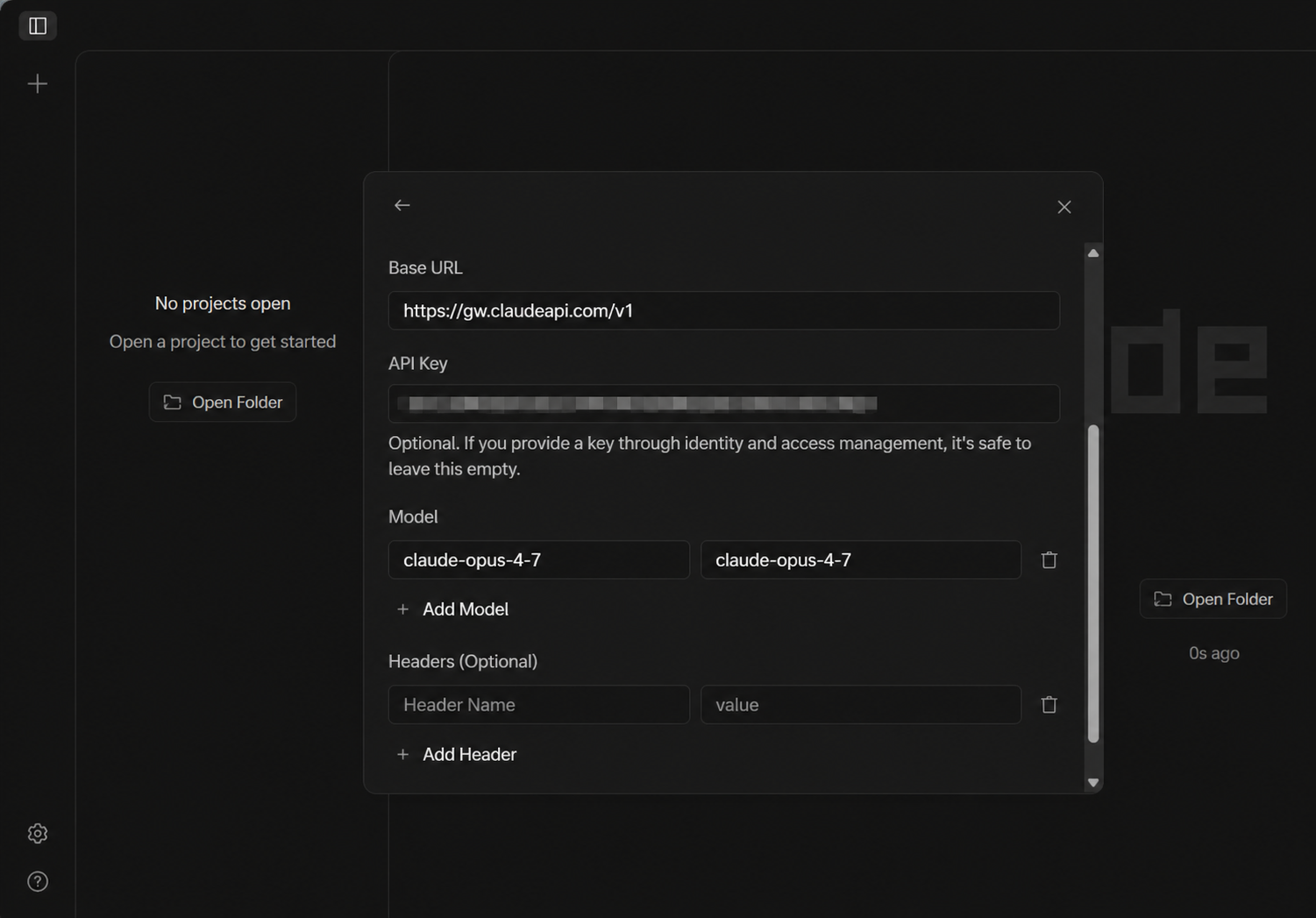
In the configuration dialog, enter the following information:
| Field | Value |
|---|---|
| Base URL | https://gw.claudeapi.com/v1 |
| API Key | Your ClaudeAPI.com API Key |
| Model, left column | Model ID, for example claude-sonnet-4-6 |
| Model, right column | Display name, for example Claude Sonnet 4.6 |
| Headers | Usually leave this empty |
Step 3: Add the models you need
Click “+ Add Model” to add multiple models. Recommended options:
| Model ID | Display Name | Pricing, input/output | Best For |
|---|---|---|---|
claude-opus-4-7 |
Claude Opus 4.7 | $4.0 / $20.0 per 1M | Complex reasoning, deep code analysis |
claude-opus-4-6 |
Claude Opus 4.6 | $4.0 / $20.0 per 1M | Complex reasoning, long-context workloads |
claude-sonnet-4-6 |
Claude Sonnet 4.6 | $2.4 / $12.0 per 1M | General development, production coding ⭐ |
claude-haiku-4-5-20251001 |
Claude Haiku 4.5 | $0.8 / $4.0 per 1M | Fast responses, lightweight tasks |
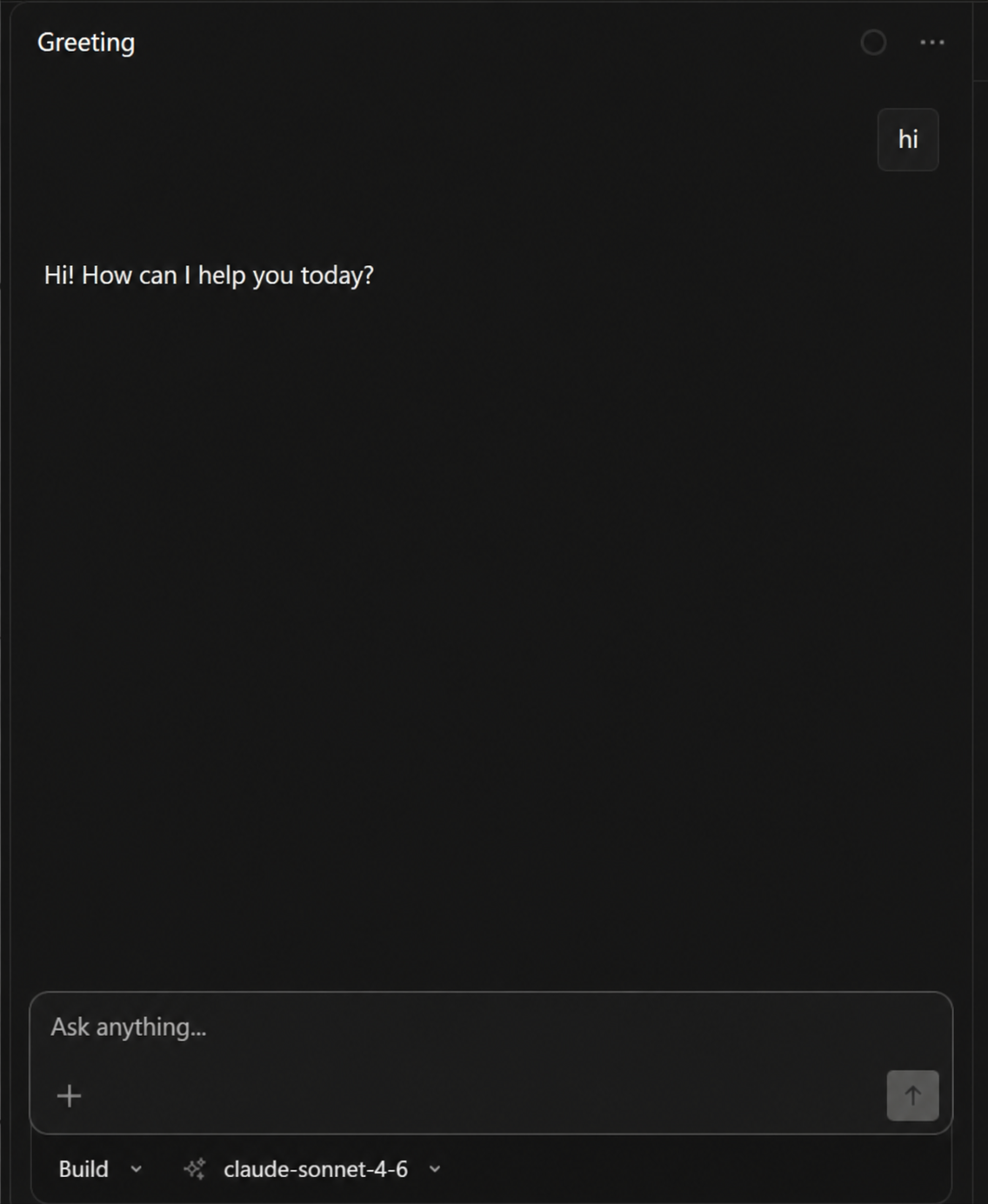
After saving, choose the corresponding ClaudeAPI.com model from the model dropdown in the main OpenCode interface and start using it.
3. Method 2: Configure OpenCode with a JSON Config File
This option is better for developers who need version control, project-level switching, server deployments, or CI/CD environments.
Config file paths
| Platform | Global config path | Project-level config path |
|---|---|---|
| Windows | %USERPROFILE%\.config\opencode\opencode.json |
opencode.json in the project root |
| macOS | ~/.config/opencode/opencode.json |
opencode.json in the project root |
| Linux | ~/.config/opencode/opencode.json |
opencode.json in the project root |
Create the config directory
# macOS / Linux
mkdir -p ~/.config/opencode

# Windows (PowerShell)
New-Item -ItemType Directory -Force -Path "$env:USERPROFILE\.config\opencode"
# macOS / Linux
mkdir -p ~/.config/opencode

# Windows (PowerShell)
New-Item -ItemType Directory -Force -Path "$env:USERPROFILE\.config\opencode"
Full config template with all recommended models
{
  "$schema": "https://opencode.ai/config.json",
  "provider": {
    "claudeapi": {
      "npm": "@ai-sdk/openai-compatible",
      "name": "ClaudeAPI.com",
      "options": {
        "baseURL": "https://gw.claudeapi.com/v1",
        "apiKey": "{env:CLAUDEAPI_API_KEY}"
      },
      "models": {
        "claude-opus-4-7": {
          "name": "Claude Opus 4.7",
          "limit": {
            "context": 200000,
            "output": 32000
          }
        },
        "claude-opus-4-6": {
          "name": "Claude Opus 4.6",
          "limit": {
            "context": 200000,
            "output": 32000
          }
        },
        "claude-sonnet-4-6": {
          "name": "Claude Sonnet 4.6",
          "limit": {
            "context": 200000,
            "output": 16000
          }
        },
        "claude-haiku-4-5-20251001": {
          "name": "Claude Haiku 4.5",
          "limit": {
            "context": 200000,
            "output": 8000
          }
        }
      }
    }
  },
  "model": "claudeapi/claude-sonnet-4-6"
}
{
  "$schema": "https://opencode.ai/config.json",
  "provider": {
    "claudeapi": {
      "npm": "@ai-sdk/openai-compatible",
      "name": "ClaudeAPI.com",
      "options": {
        "baseURL": "https://gw.claudeapi.com/v1",
        "apiKey": "{env:CLAUDEAPI_API_KEY}"
      },
      "models": {
        "claude-opus-4-7": {
          "name": "Claude Opus 4.7",
          "limit": {
            "context": 200000,
            "output": 32000
          }
        },
        "claude-opus-4-6": {
          "name": "Claude Opus 4.6",
          "limit": {
            "context": 200000,
            "output": 32000
          }
        },
        "claude-sonnet-4-6": {
          "name": "Claude Sonnet 4.6",
          "limit": {
            "context": 200000,
            "output": 16000
          }
        },
        "claude-haiku-4-5-20251001": {
          "name": "Claude Haiku 4.5",
          "limit": {
            "context": 200000,
            "output": 8000
          }
        }
      }
    }
  },
  "model": "claudeapi/claude-sonnet-4-6"
}
Set an environment variable
Using an environment variable is recommended because it keeps your API Key out of the config file and reduces the risk of accidentally committing it to Git.
Windows (PowerShell)
# Temporary, only for the current session
$env:CLAUDEAPI_API_KEY="sk-xxx"

# Permanent, user-level setting, effective after restart
[Environment]::SetEnvironmentVariable("CLAUDEAPI_API_KEY", "sk-xxx", "User")
# Temporary, only for the current session
$env:CLAUDEAPI_API_KEY="sk-xxx"

# Permanent, user-level setting, effective after restart
[Environment]::SetEnvironmentVariable("CLAUDEAPI_API_KEY", "sk-xxx", "User")
macOS / Linux
# Temporary
export CLAUDEAPI_API_KEY="sk-xxx"

# Permanent
echo 'export CLAUDEAPI_API_KEY="sk-xxx"' >> ~/.bashrc  # or ~/.zshrc
source ~/.bashrc
# Temporary
export CLAUDEAPI_API_KEY="sk-xxx"

# Permanent
echo 'export CLAUDEAPI_API_KEY="sk-xxx"' >> ~/.bashrc  # or ~/.zshrc
source ~/.bashrc
4. GUI vs Config File
| Desktop GUI | Config File | |
|---|---|---|
| Difficulty | ⭐ Easy | ⭐⭐ Requires basic JSON knowledge |
| Best For | Personal daily use | Multi-project setups, teams, CI/CD |
| API Key security | Stored inside the app | Can be isolated via environment variables |
| Version control | Not supported | Can be tracked with Git |
| Multi-project setup | Manual switching | Automatic switching via project-level opencode.json |
5. Verify Your Setup
# Check which config OpenCode has loaded
opencode debug config

# List all available models
opencode models

# Start OpenCode with a specific model
opencode --model claudeapi/claude-sonnet-4-6
# Check which config OpenCode has loaded
opencode debug config

# List all available models
opencode models

# Start OpenCode with a specific model
opencode --model claudeapi/claude-sonnet-4-6
After OpenCode starts, run /models in the TUI and confirm that the ClaudeAPI.com models appear in the list.
6. Troubleshooting
| Issue | Solution |
|---|---|
| API authentication failed | Make sure your API Key is correct. The Base URL must be https://gw.claudeapi.com/v1, including the /v1 suffix |
| Model list is empty | Check whether the models field contains valid model IDs |
| Response gets cut off | Add "timeout": 600000 under options, in milliseconds |
| Windows cannot find the config file | Use %USERPROFILE% instead of ~. They are not equivalent on Windows |
| GUI configuration does not take effect | Restart OpenCode so the new provider settings are loaded |
Tip:
claude-sonnet-4-6is the default recommended model on ClaudeAPI.com. It offers the best balance of performance and cost for most coding tasks. For very large repositories or complex architecture analysis, switch toclaude-opus-4-7for the strongest results.