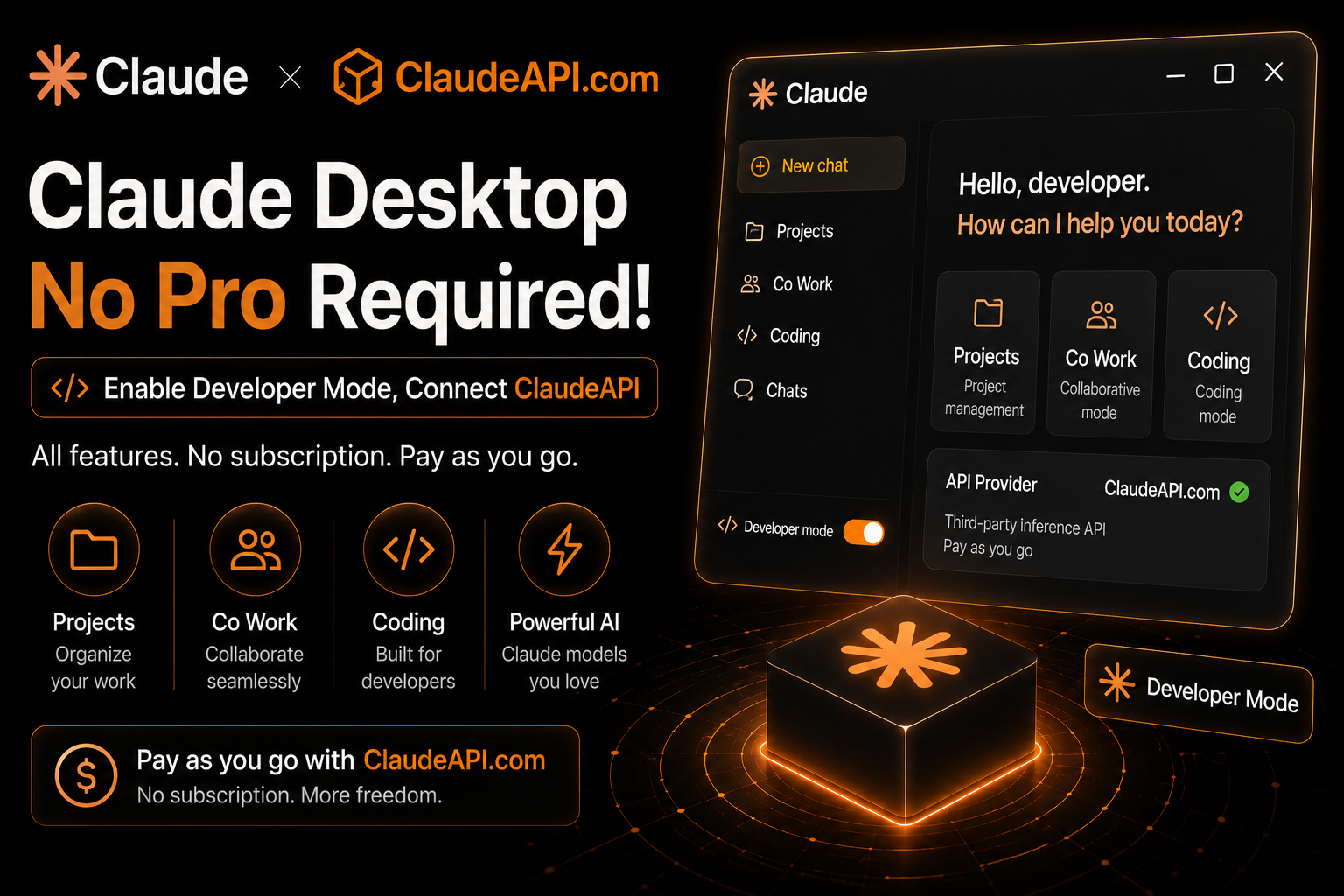
Want to use Claude Desktop’s advanced features—Projects, Co Work, Coding mode, and more—without paying for a Pro subscription?
Claude Desktop normally requires a Pro plan starting at $20/month for many of these features.
With Claude Desktop Developer Mode + ClaudeAPI.com’s third-party inference gateway, you can connect original Claude models, pay by usage, and keep the full Claude Desktop experience without a monthly subscription.
Step 1: Download and Install Claude Desktop
After installation, open the app directly. No login required.
Step 2: Enable Developer Mode
In Claude Desktop, click the top menu:
Help → Troubleshooting → Enable Developer Mode
Help → Troubleshooting → Enable Developer Mode
Claude Desktop will restart automatically. Once it reopens, you should see a new Developer option in the top menu. That means Developer Mode has been enabled successfully.
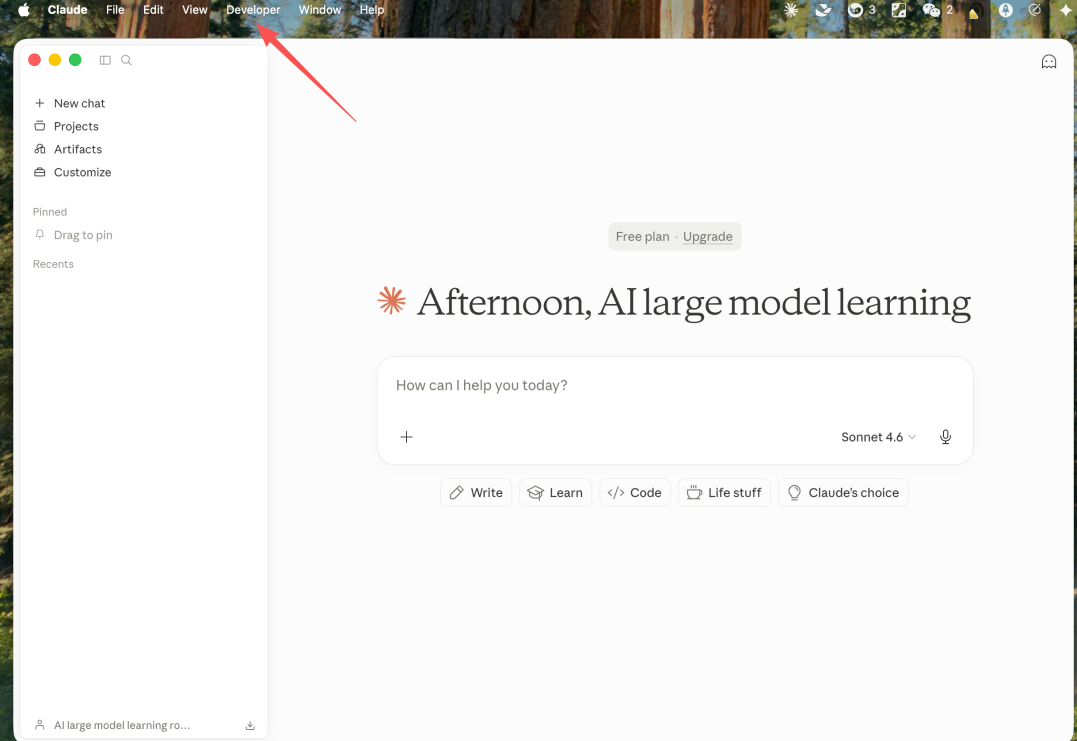
Step 3: Configure ClaudeAPI.com
Click the top menu:
Developer → Configure Third-Party Inference
Developer → Configure Third-Party Inference
On the configuration page, the Connection section offers four options:
- Gateway — the universal compatible endpoint. This is the one we’ll use.
- AWS Bedrock
- Google Vertex AI
- Microsoft Azure
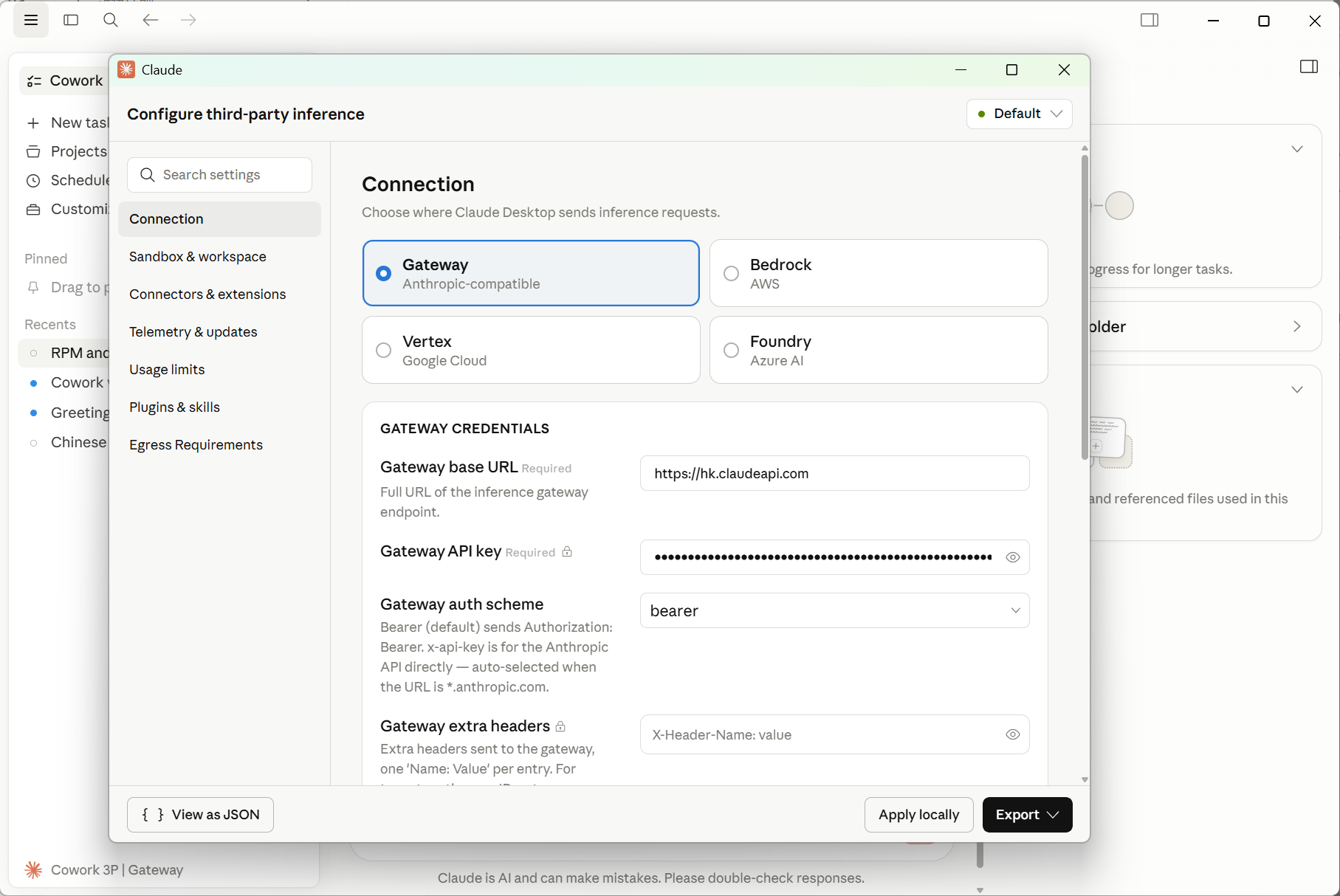
Enter Your API Settings
| Field | Value |
|---|---|
| Gateway Base URL | https://gw.claudeapi.com |
| API Key | Your ClaudeAPI.com API Key |
Don’t have an API key yet? Sign up at claudeapi.com. New users can start with free trial credits.
Add a Model
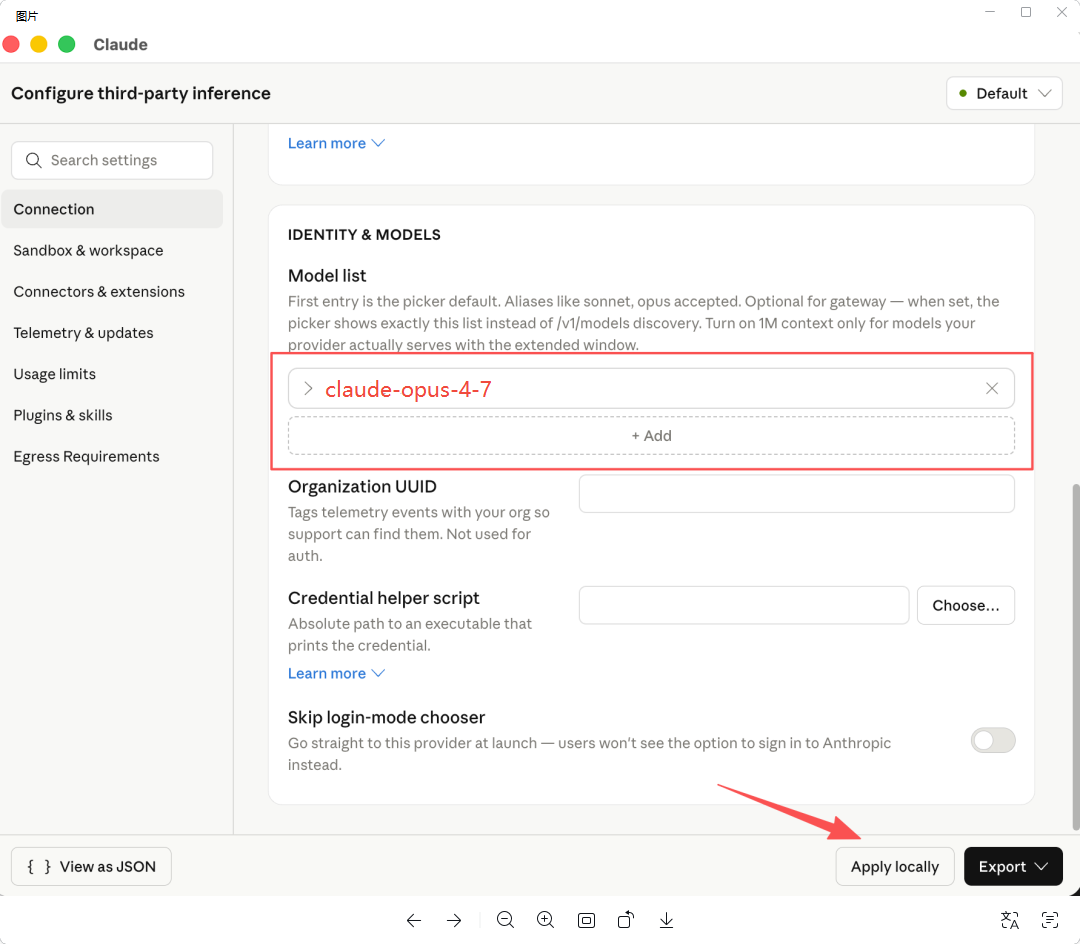
Click Add Model and enter the model ID. Recommended:
claude-opus-4-7
claude-opus-4-7
ClaudeAPI.com supports the full Claude model lineup:
claude-opus-4-7— best for complex, high-reasoning tasksclaude-sonnet-4-6— best value for everyday development workclaude-haiku-4-5-20251001— fastest option for lightweight requests
After entering the model, click Apply Locally. Claude Desktop will restart, and the model list will be loaded automatically.
Step 4: Start Using Claude Desktop
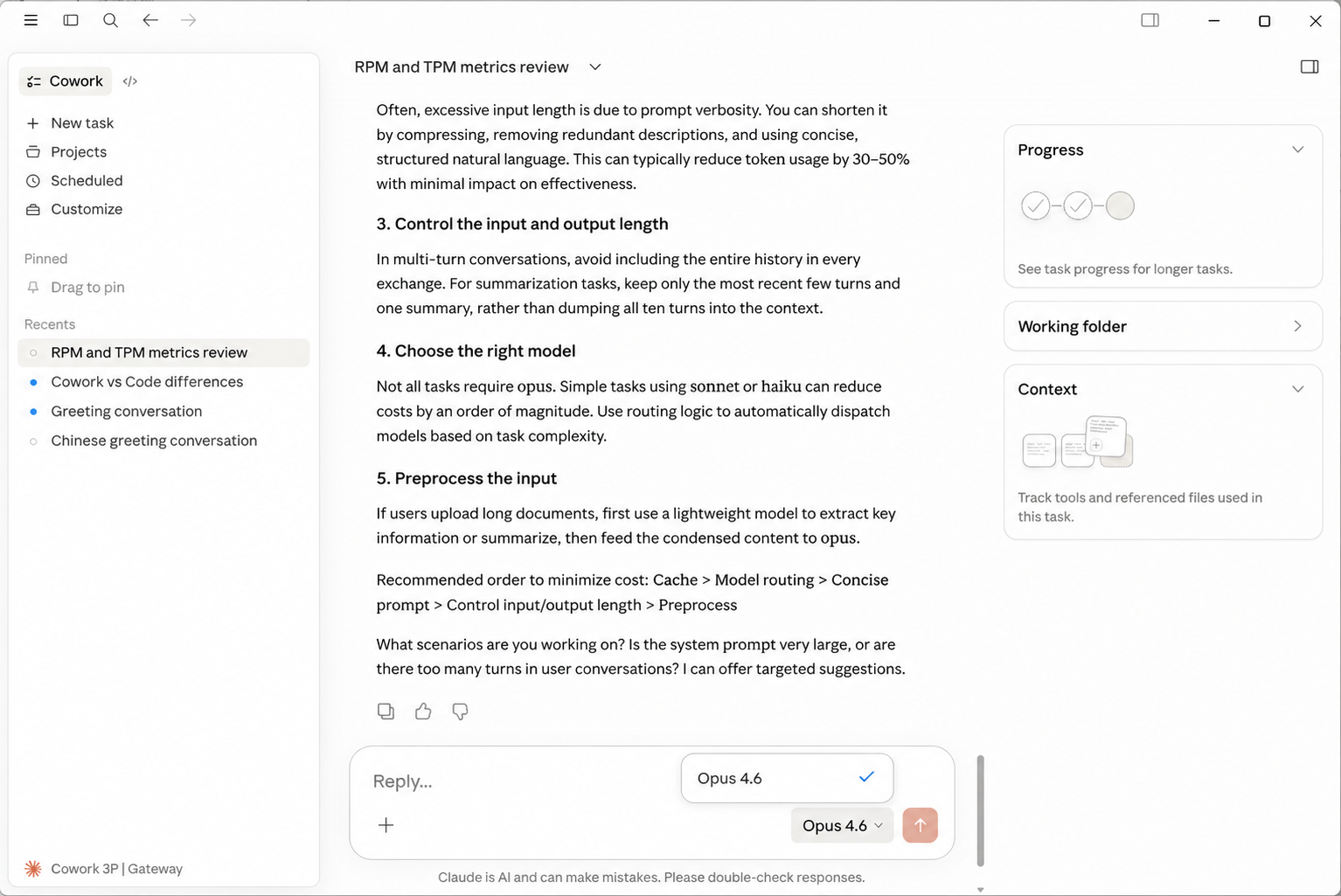
After the restart, open the model dropdown, select the model you just added, and start using Claude Desktop as usual.
Co Work and Coding Mode Still Work
A common question is whether Claude Desktop’s native workflows still work when using a third-party API provider.
The answer: yes. Co Work mode and Coding mode work normally when connected through ClaudeAPI.com.
For example, in Coding mode, you can ask Claude to generate a complete frontend page from a single prompt. The workflow remains smooth because the request is handled by the actual claude-opus-4-7 model behind the scenes, giving you an experience comparable to the official Pro setup.
Why Use ClaudeAPI.com?
The model you connect to determines the quality you get.
Claude Desktop is the interface. The real intelligence comes from the model running behind it. If your provider routes requests to a distilled, fine-tuned, or unofficial substitute model, the results can drop dramatically.
ClaudeAPI.com connects to Anthropic’s official API, so when you select claude-opus-4-7, you are using the real model—not a swapped or degraded replacement.
Pricing Comparison
| Option | Monthly Fee | Model Access | Limits |
|---|---|---|---|
| Claude Pro | $20/month fixed | Claude Sonnet | Usage caps apply |
| ClaudeAPI.com | Pay per token | Full model lineup | No fixed subscription |
Light users may only spend a few dollars per month, while heavy users avoid fixed subscription limits and usage throttling.
Recap
You can set everything up in about five minutes:
- Download and install Claude Desktop. No login required.
- Enable Developer Mode via
Help → Troubleshooting → Enable Developer Mode. - Go to
Developer → Configure Third-Party Inference, enter the ClaudeAPI.com gateway URL and API key, add your model, and click Apply.
You get the Claude Desktop experience, advanced workflows included, with pay-as-you-go API access instead of a fixed Pro subscription.