New to Claude Code and want to route through ClaudeAPI.com—but not sure which config files to edit? This tutorial is for you.
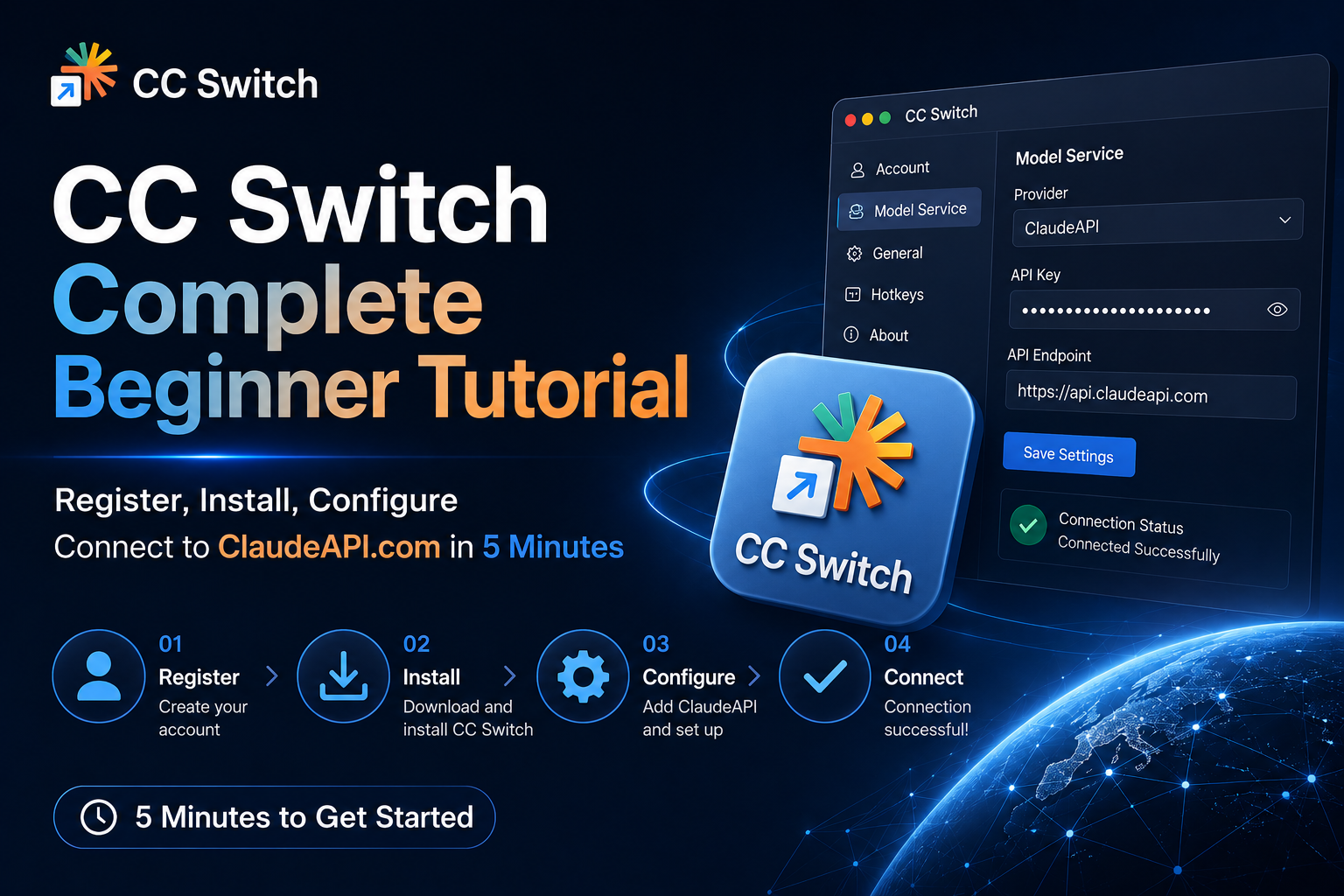
CC Switch is one of the most popular Claude Code configuration managers on GitHub (68K+ stars). It replaces hand-editing JSON/TOML with a visual UI so you can switch API providers in one click. Below is the full path from signup to a working call.
What is CC Switch?
CC Switch is a cross-platform desktop app (Windows / macOS / Linux) that centralizes API settings for Claude Code, Codex, Gemini CLI, and related AI coding tools.
In one line: you no longer hunt for
settings.jsonor memorize env vars. Open CC Switch, paste your API key, click Activate—done.
Core features:
| Feature | Description |
|---|---|
| Visual provider management | Forms instead of raw JSON |
| One-click switch | Tray menu; often no terminal restart |
| 50+ built-in presets | Common API platforms out of the box |
| Unified MCP | Sync MCP config across tools |
| Latency test | Pick a faster route |
| Cloud sync | Dropbox / OneDrive / iCloud (optional) |
Prerequisite: install the four managed CLIs

CC Switch only reads, writes, and switches each tool’s config. It does not run models or install CLIs for you.
Install the tools you plan to manage locally, and confirm each command runs in a terminal.
Install only what you need—or install all four if you want four icons in CC Switch’s top app bar. Every command must be on
PATHin the same OS user session CC Switch sees.
1. Claude Code
Recommended global install:
npm install -g @anthropic-ai/claude-code
npm install -g @anthropic-ai/claude-code
macOS / Linux / WSL (official script):
curl -fsSL https://claude.ai/install.sh | bash
curl -fsSL https://claude.ai/install.sh | bash
Windows PowerShell:
irm https://claude.ai/install.ps1 | iex
irm https://claude.ai/install.ps1 | iex
Verify:
claude --version
claude doctor
claude --version
claude doctor
First run:
claude
claude
Complete login or API key setup when prompted.
2. OpenCode
macOS / Linux:
curl -fsSL https://opencode.ai/install | bash
curl -fsSL https://opencode.ai/install | bash
Or npm:
npm install -g opencode-ai
npm install -g opencode-ai
Homebrew:
brew install anomalyco/tap/opencode
brew install anomalyco/tap/opencode
Windows: prefer WSL; or:
npm install -g opencode-ai
npm install -g opencode-ai
Verify and auth:
opencode --version
opencode auth login
opencode --version
opencode auth login
opencode auth login configures the provider API key OpenCode uses.
3. OpenClaw
OpenClaw is an agent-oriented fork/ecosystem around OpenCode—follow its official install docs. Common paths:
curl -fsSL https://openclaw.ai/install.sh | bash
curl -fsSL https://openclaw.ai/install.sh | bash
Or npm / GitHub Releases:
npm install -g openclaw
npm install -g openclaw
Verify:
openclaw --version
openclaw --version
If the command exists but fails to start, check Node.js, global npm PATH, WSL, or terminal environment.
4. Hermes
Install per Hermes official documentation until:
hermes --version
hermes --version
works—whether via npm, pip, binary, or OS installer.
5. Verify all four
Open a new terminal and run:
claude --version
opencode --version
openclaw --version
hermes --version
claude --version
opencode --version
openclaw --version
hermes --version
command not found (or Windows “not recognized”) means the CLI is missing or not on PATH.
Locate binaries:
# macOS / Linux
which claude
which opencode
which openclaw
which hermes

# Windows PowerShell
where.exe claude
where.exe opencode
where.exe openclaw
where.exe hermes
# macOS / Linux
which claude
which opencode
which openclaw
which hermes

# Windows PowerShell
where.exe claude
where.exe opencode
where.exe openclaw
where.exe hermes
6. Check in CC Switch

Reopen CC Switch after CLIs work in terminal.
The top app bar scans installed tools:
- Icon shown: CC Switch found the CLI
- Icon missing: not installed or not on CC Switch’s
PATH - Terminal works but CC Switch does not see it: restart CC Switch; restart OS if needed; launch CC Switch from the same user account
Provider switching (endpoint, API key, models, proxy) applies only after CC Switch detects the target app.
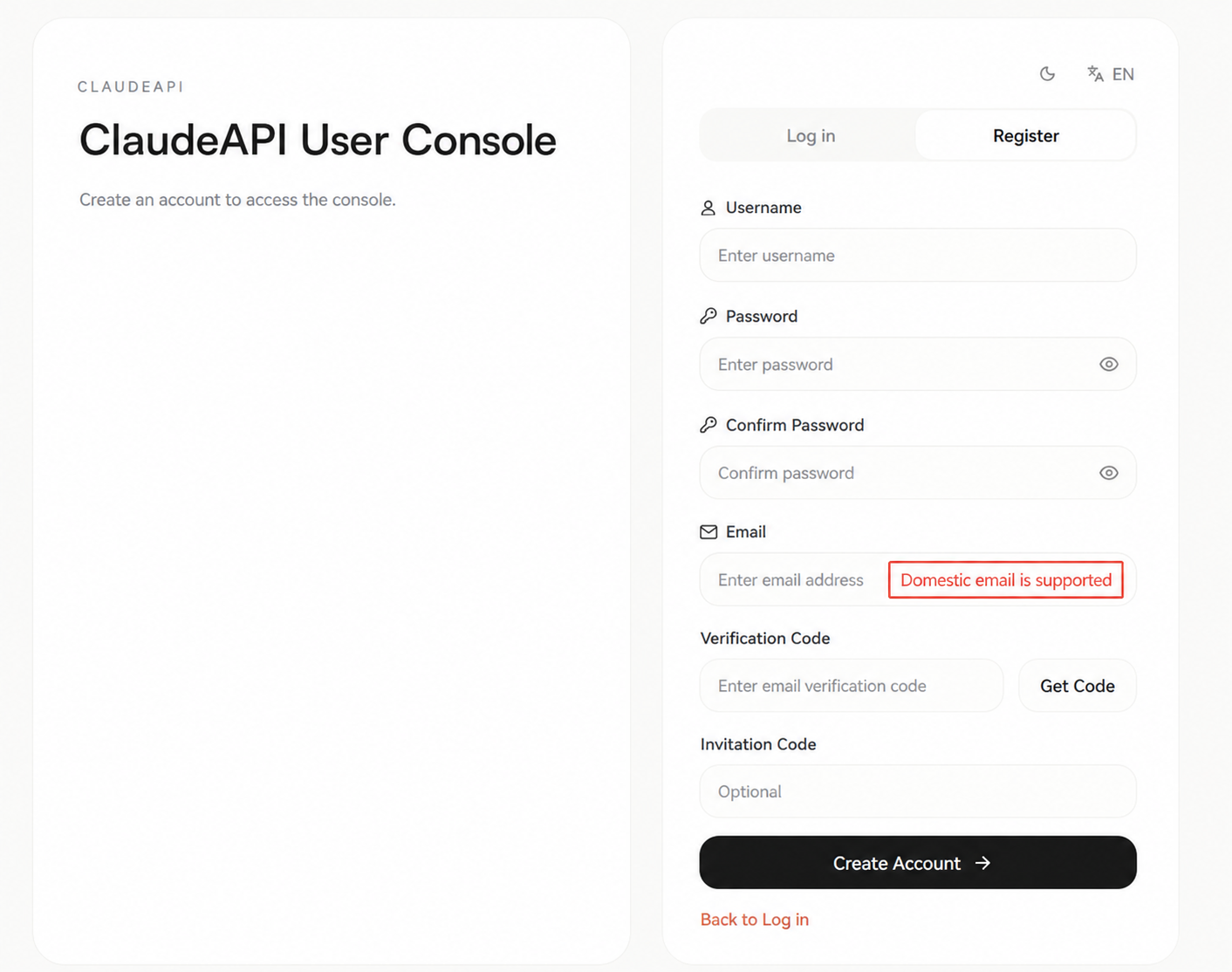
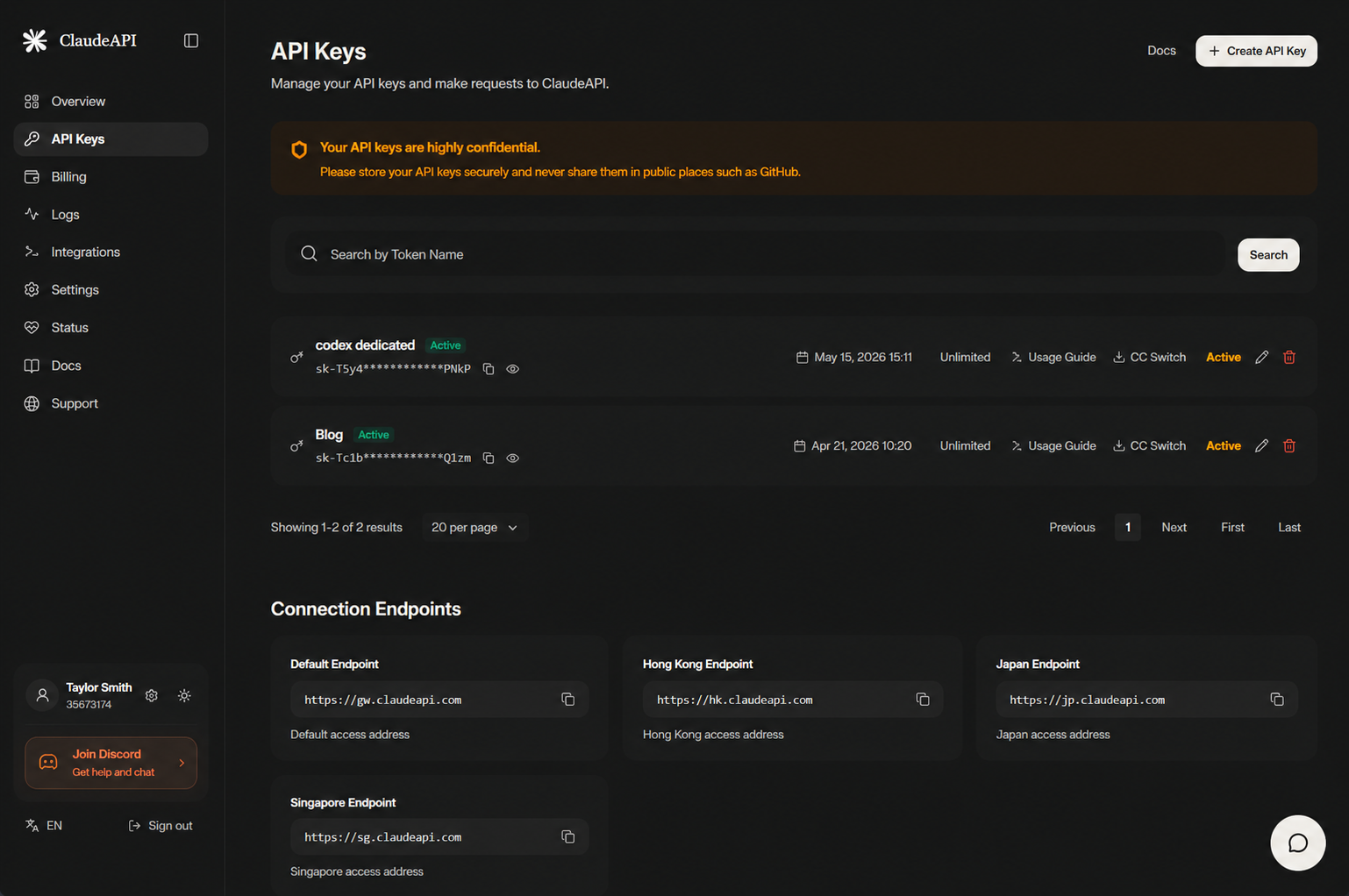
Step 1: Register on ClaudeAPI.com and create an API key
- Go to ClaudeAPI.com and create an account.
- Verify your email address and open the dashboard.
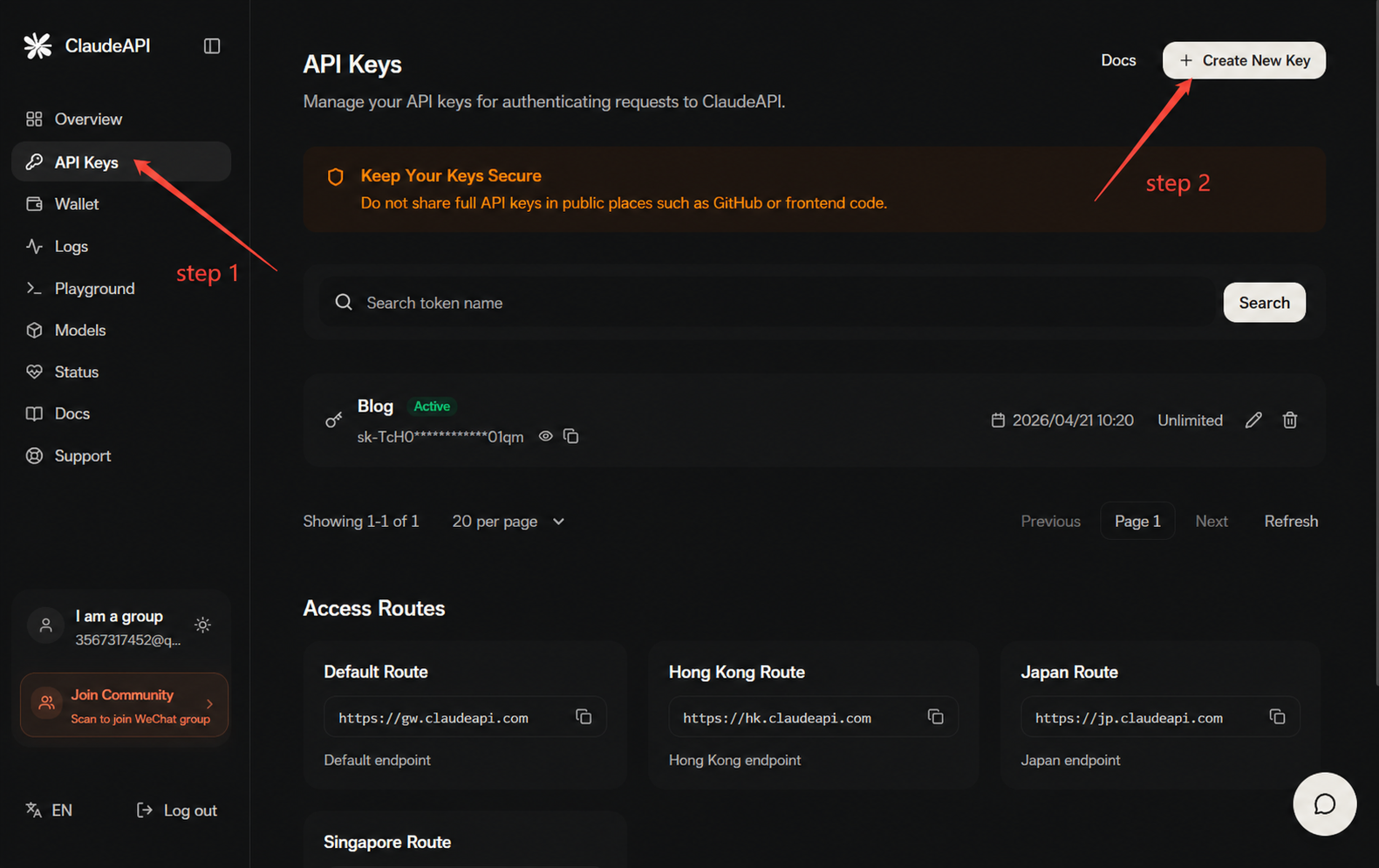
- Open the API Keys page and click Create New Key.
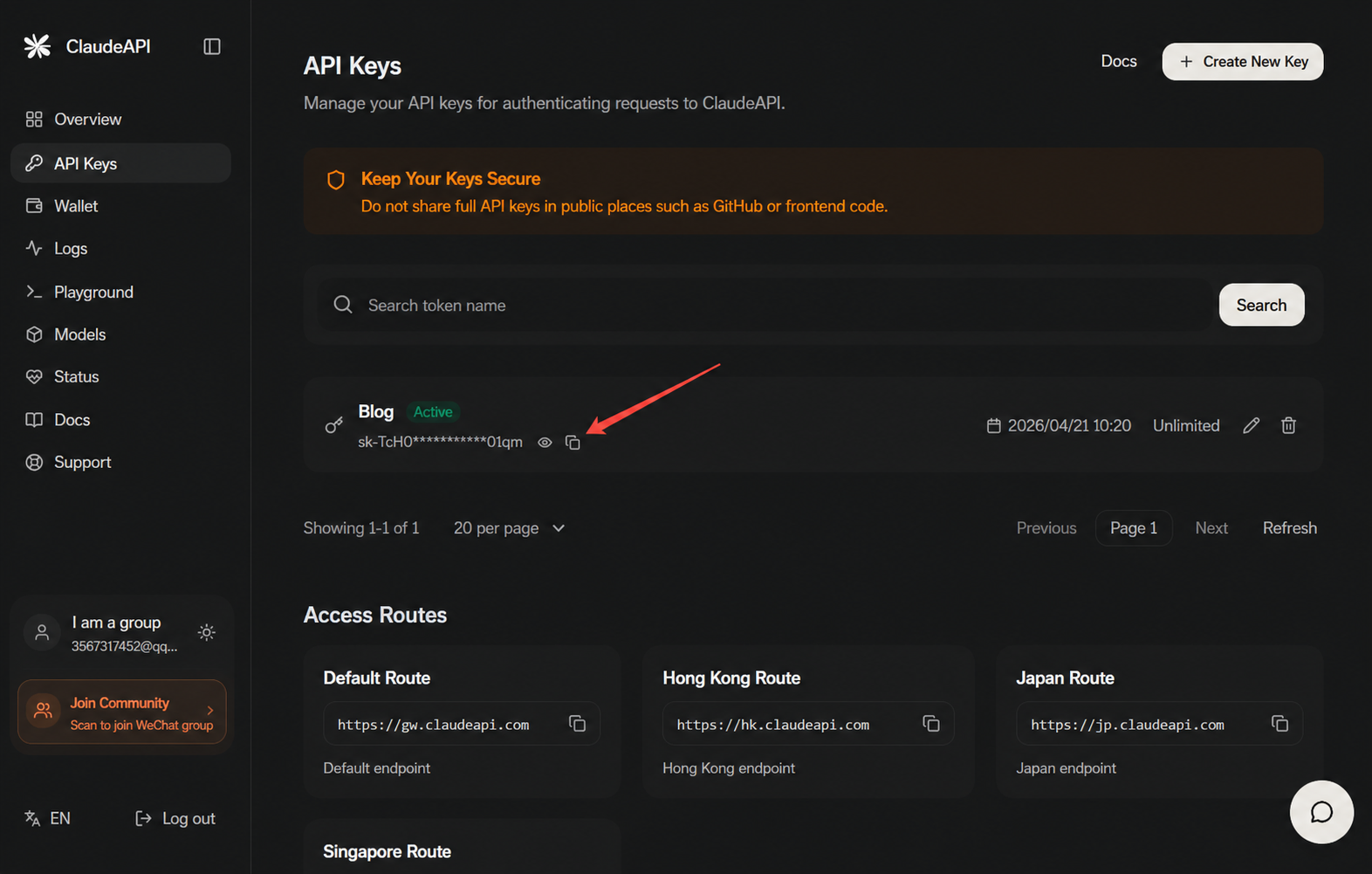
- Copy your API key and save it immediately. It will only be displayed once.
ClaudeAPI.com model reference (verify live pricing in console):
| Model | Model ID | Input (per 1M) | Typical use |
|---|---|---|---|
| Claude Opus 4.7 | claude-opus-4-7 |
$4.000/1M | Hard reasoning, long context |
| Claude Opus 4.6 | claude-opus-4-6 |
$4.000/1M | Hard reasoning, long context |
| Claude Sonnet 4.6 | claude-sonnet-4-6 |
$2.400/1M | Daily development (default) |
| Claude Haiku 4.5 | claude-haiku-4-5-20251001 |
$0.800/1M | Fast lightweight tasks |
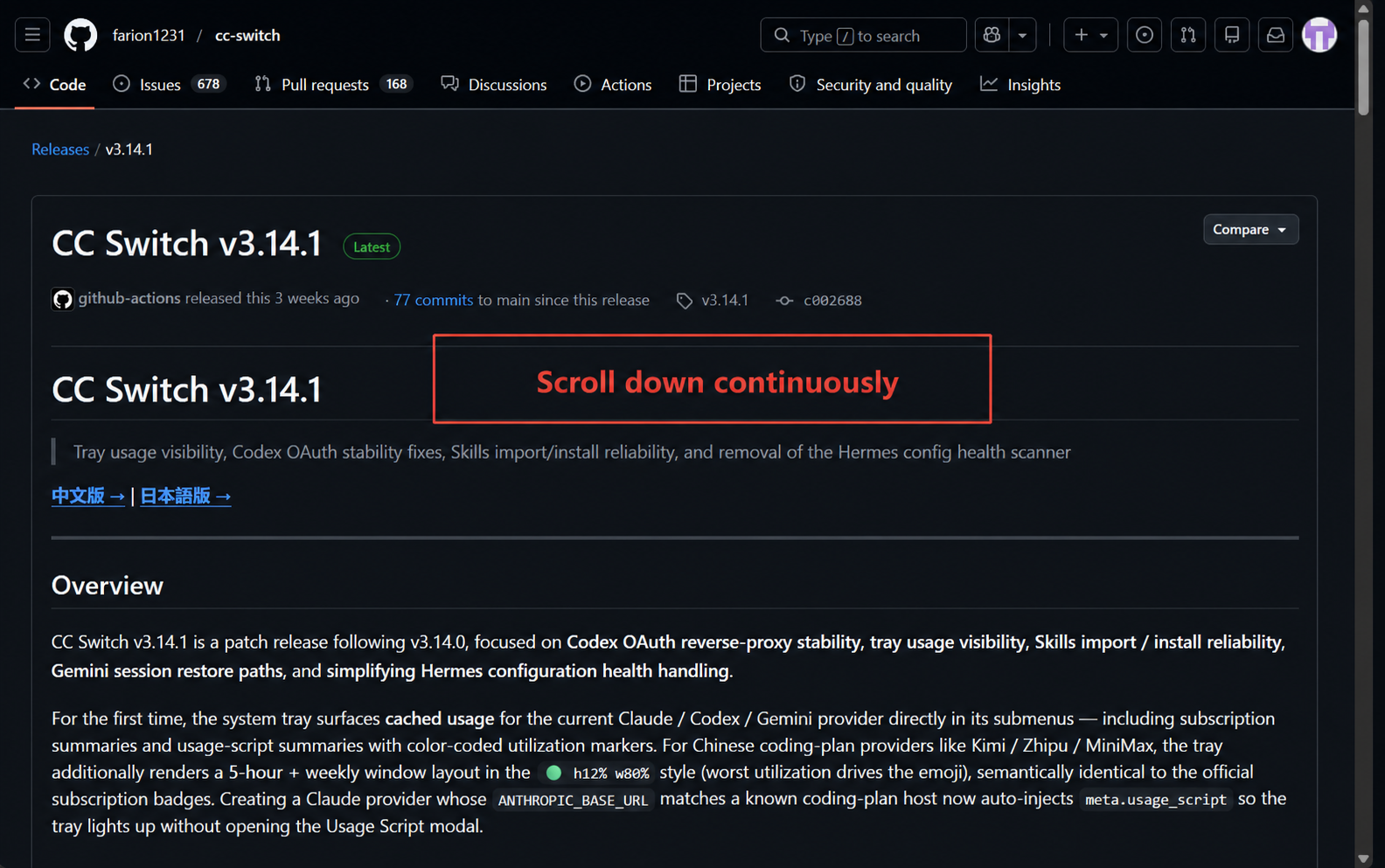
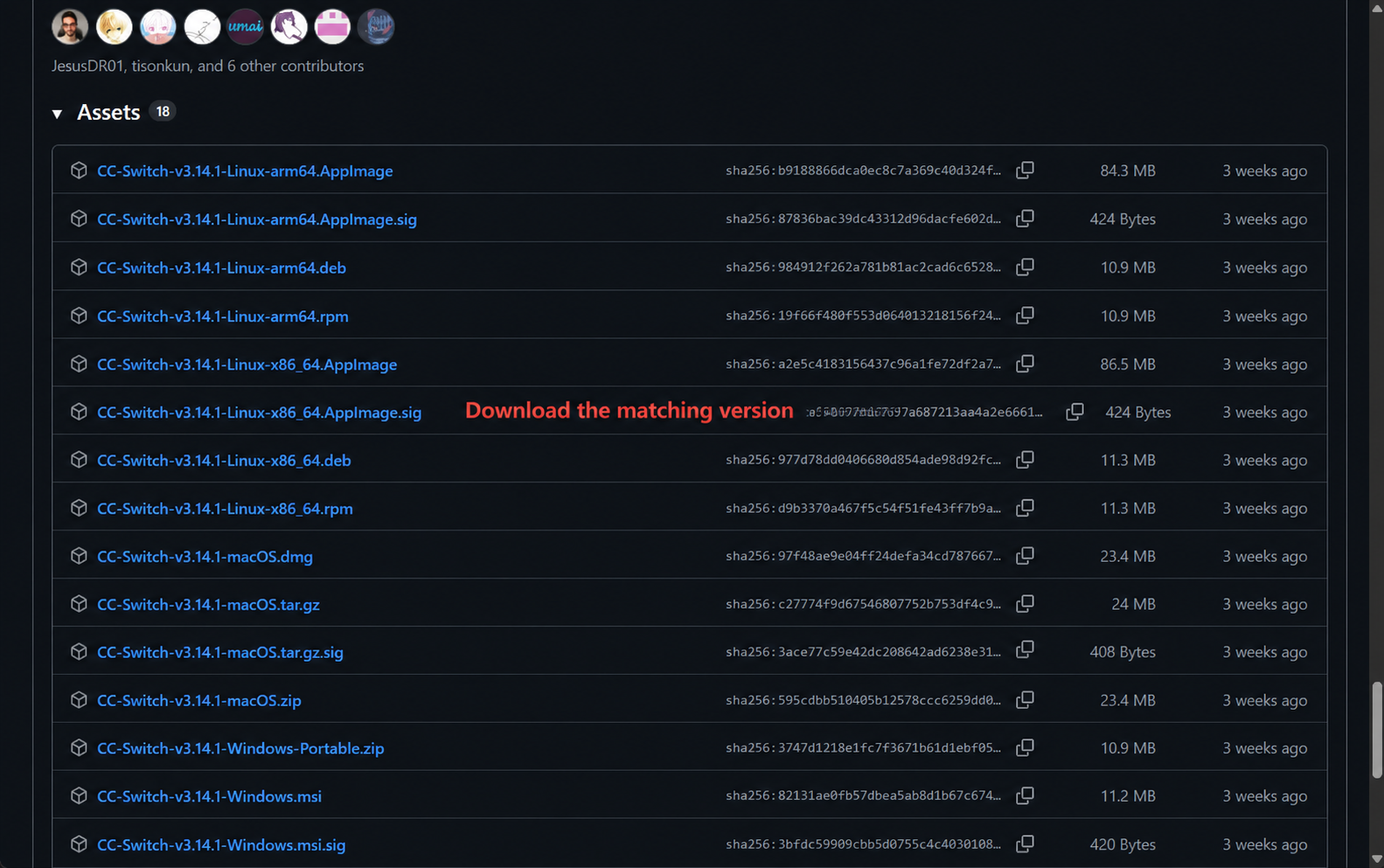
Step 2: Download and install CC Switch
- GitHub: github.com/farion1231/cc-switch
- Site: ccswitch.io
- Releases: github.com/farion1231/cc-switch/releases
Step 3 (simpler): Create ClaudeAPI.com provider from the CC Switch site
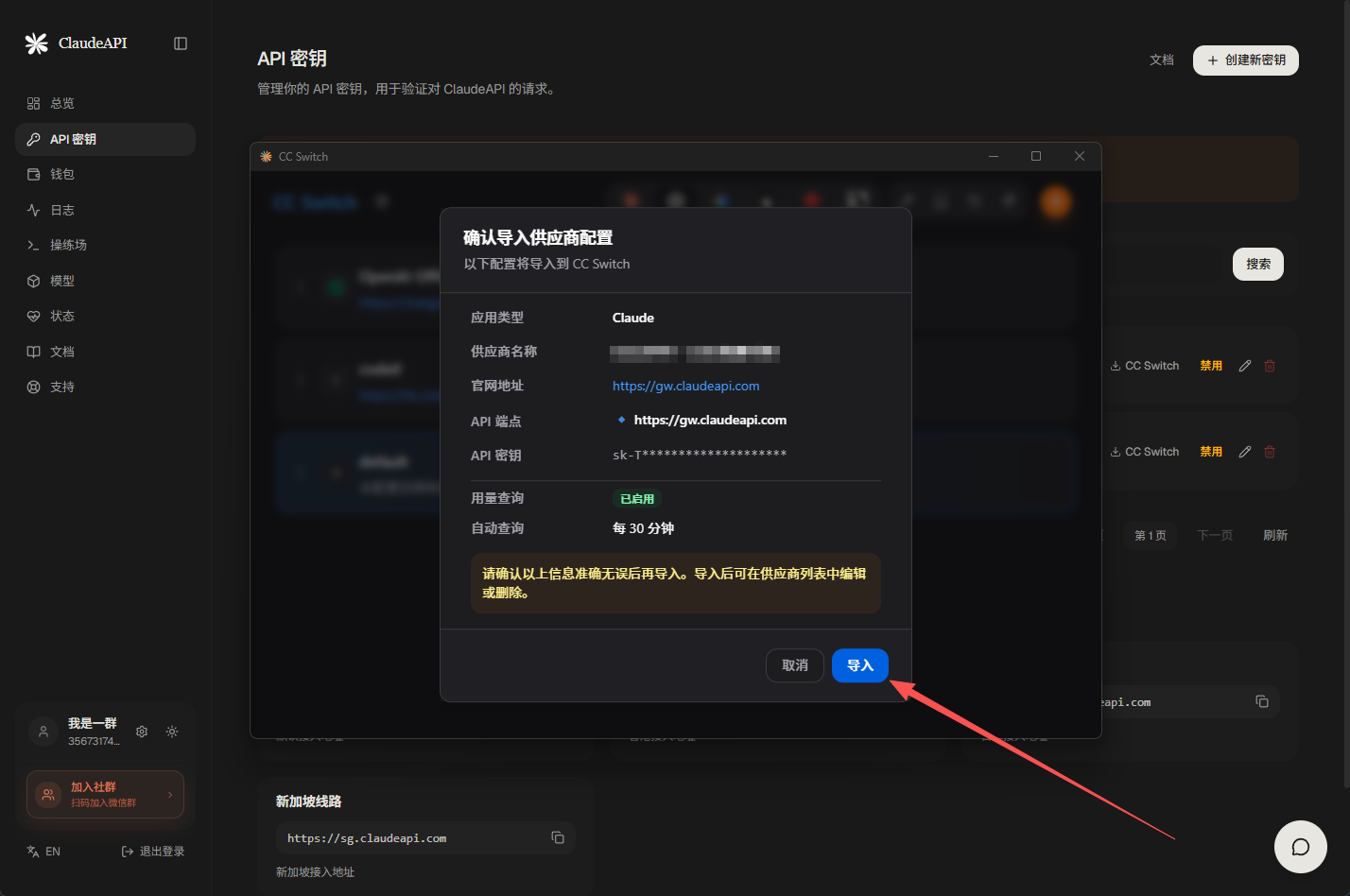
Use the guided flow on ccswitch.io if available—fewer manual fields.
Step 3 (manual): Create ClaudeAPI.com provider in CC Switch
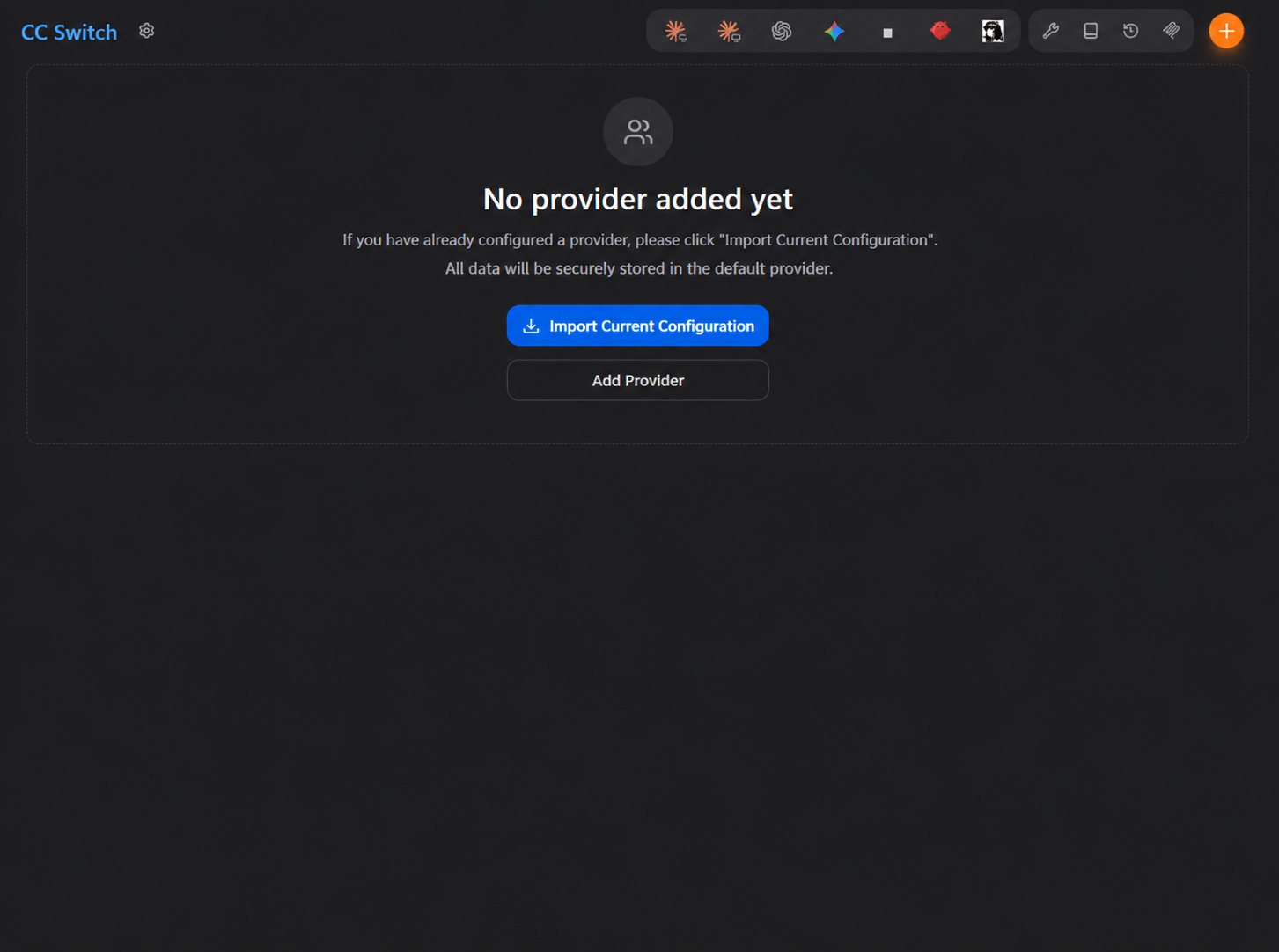
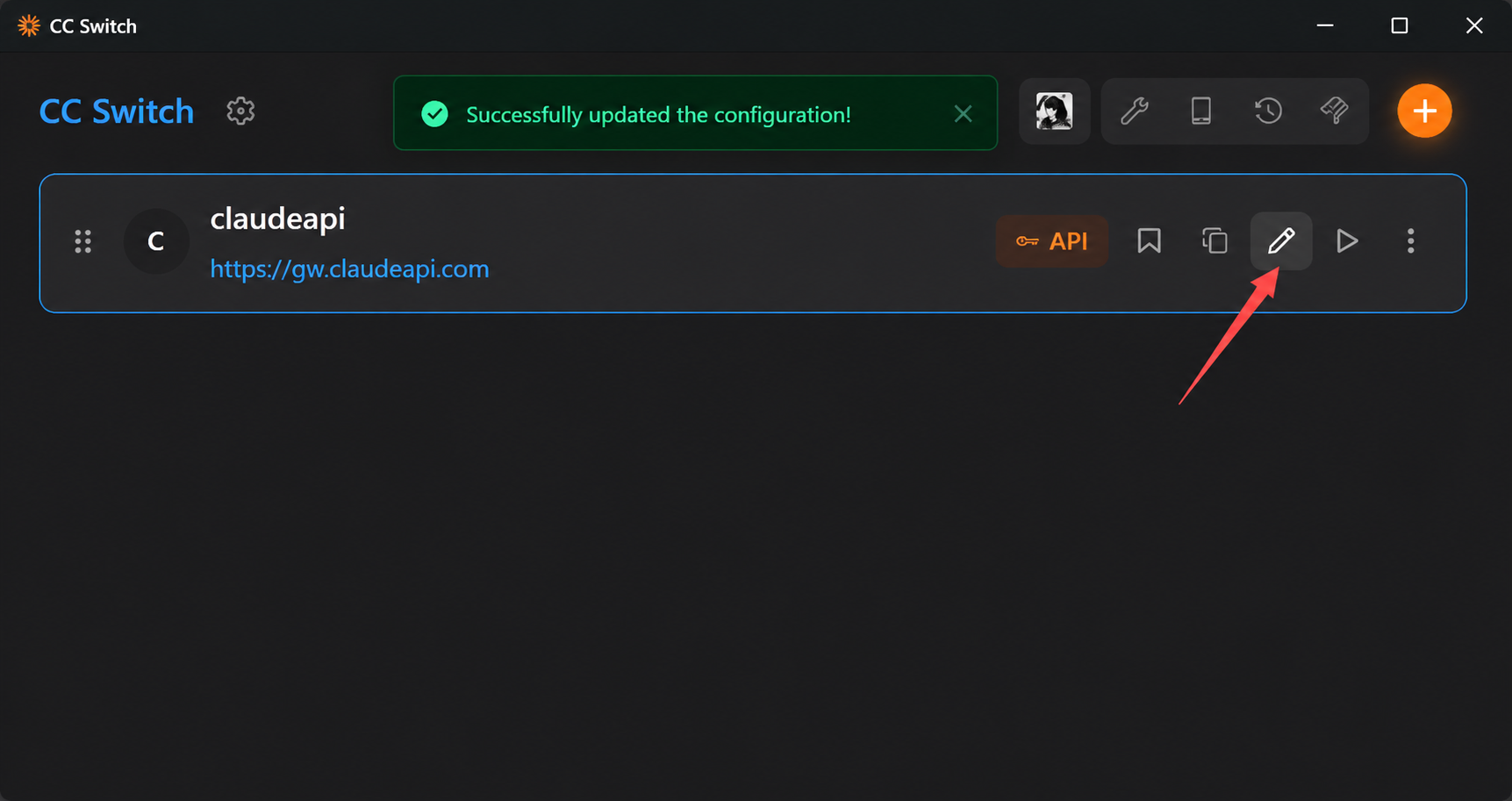
Open CC Switch after install:
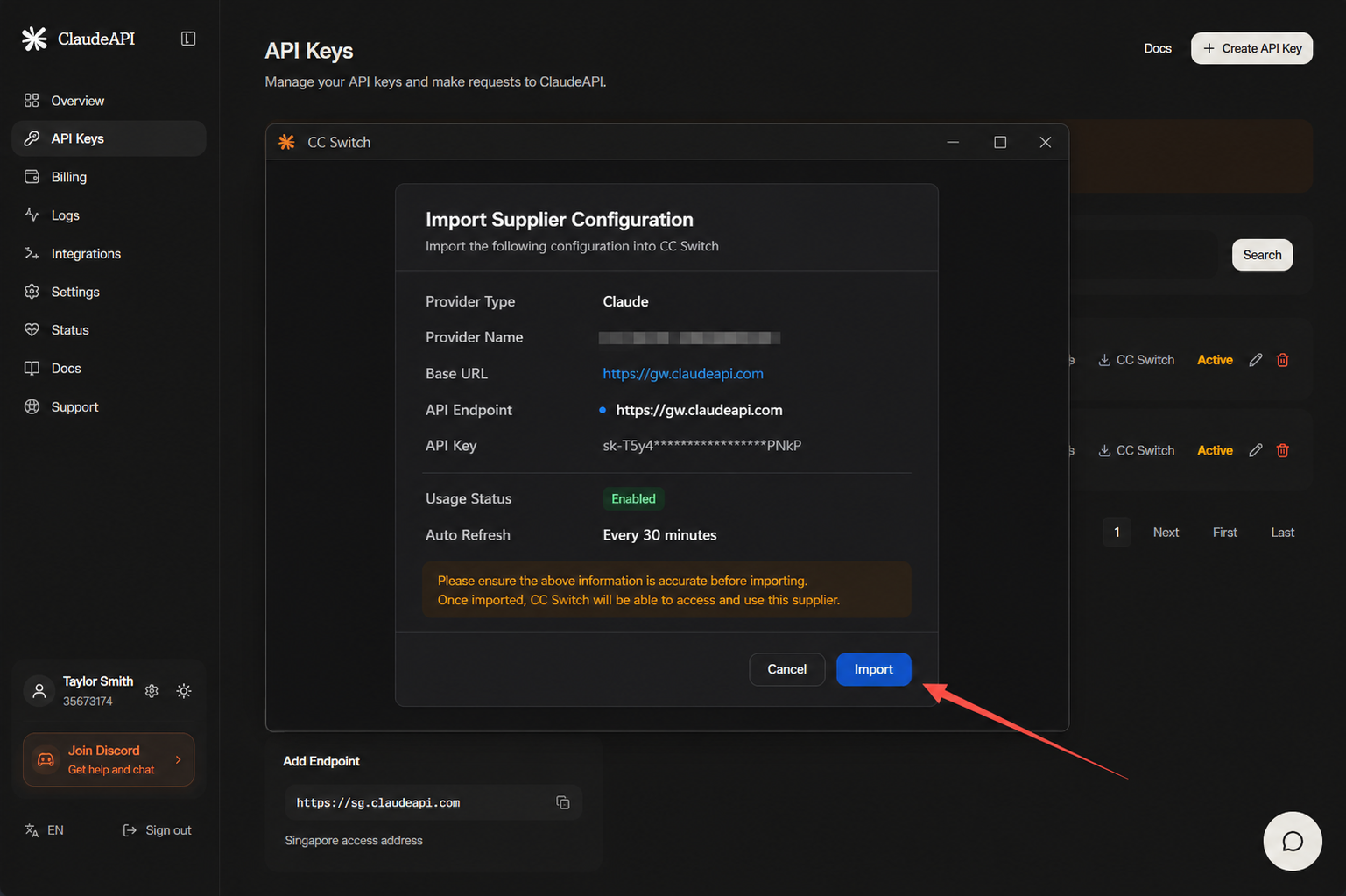
Fill in (typical ClaudeAPI.com setup):
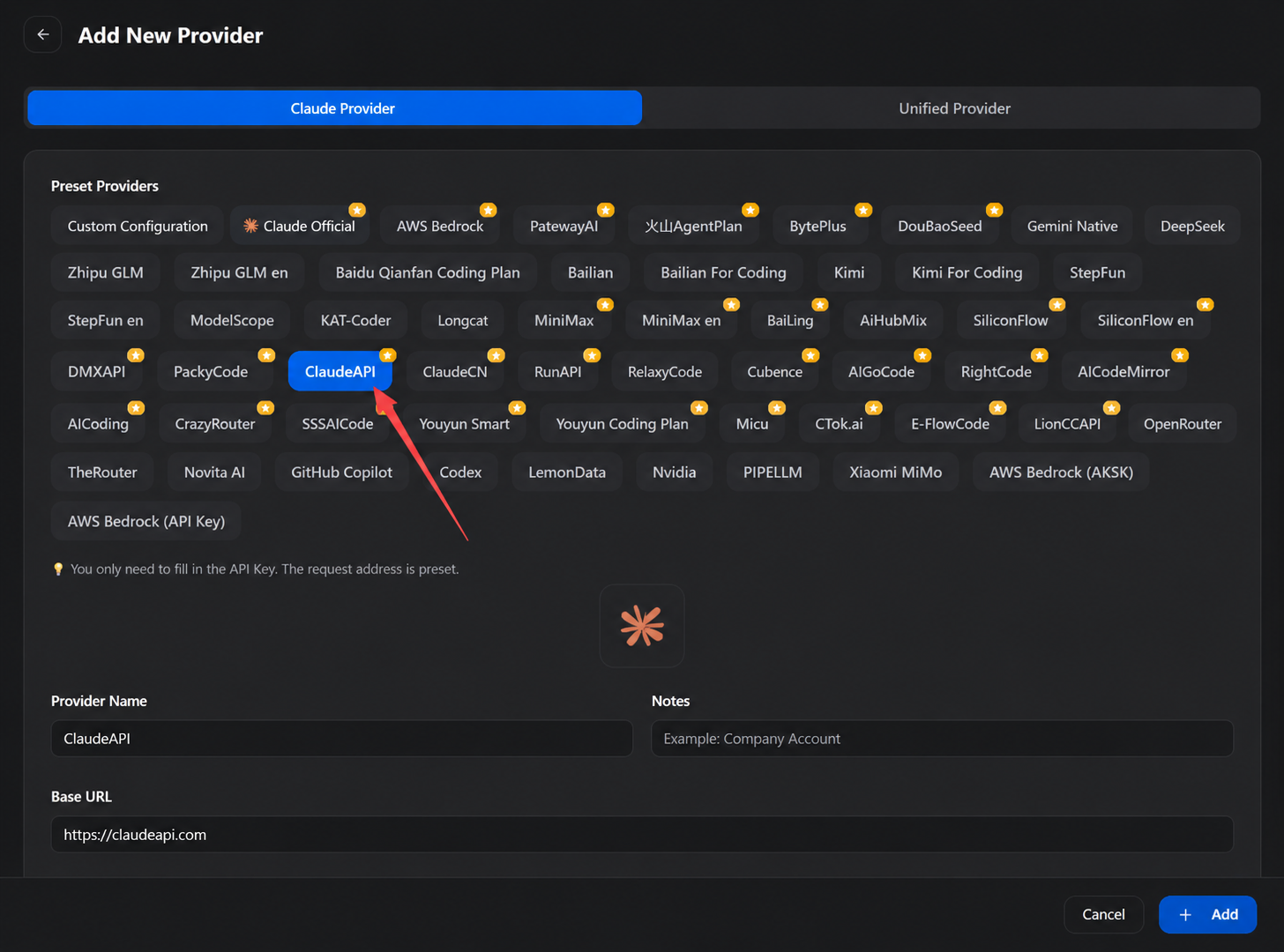
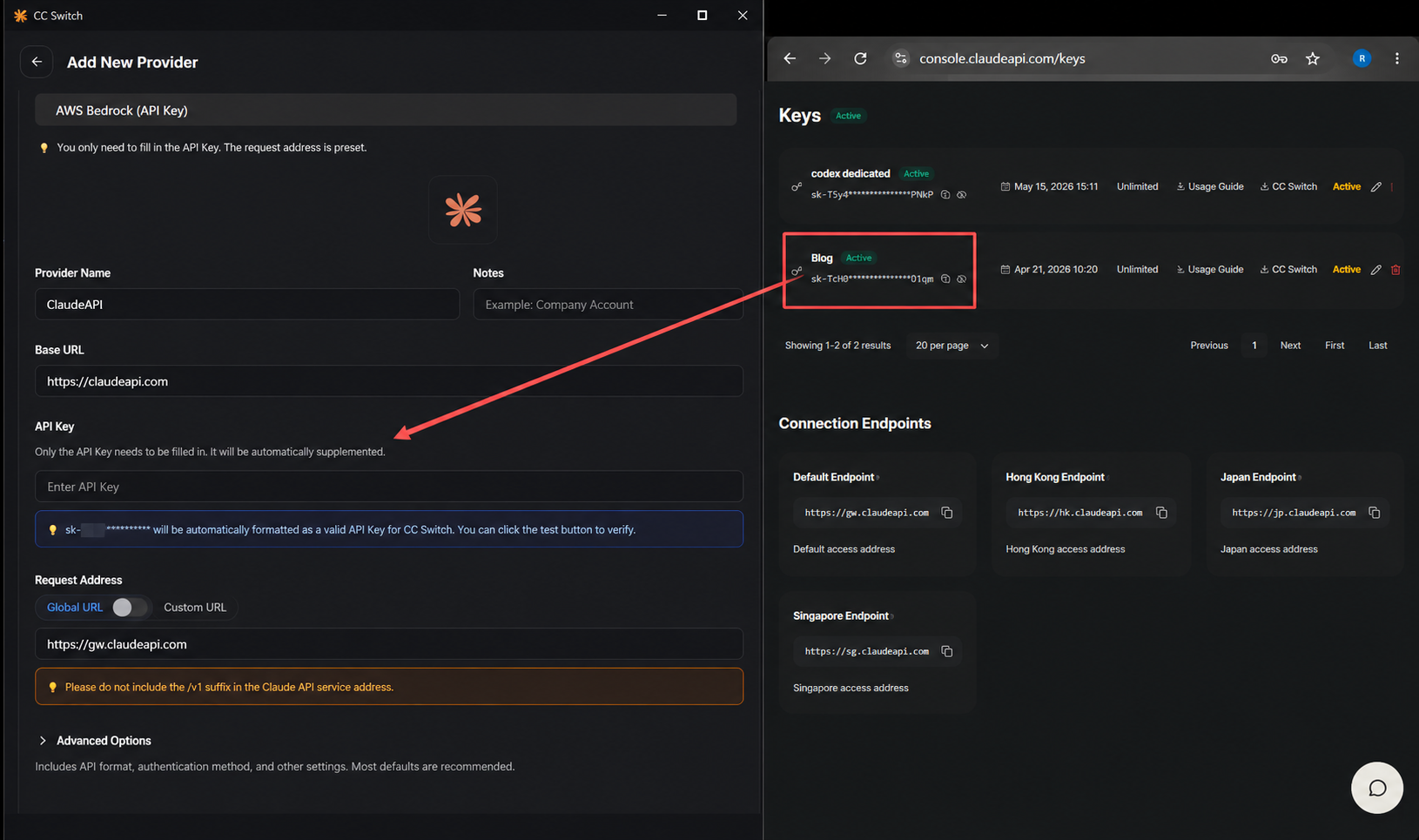
Key fields (confirm against CC Switch’s ClaudeAPI preset if offered):
| Field | Value |
|---|---|
| Base URL / endpoint | https://gw.claudeapi.com |
| API key | Your sk-… from ClaudeAPI console |
| API format | Anthropic Messages (native) |
| Auth | Default Anthropic-style token fields |
Click Save.
Step 4: Activate and test
Activate the provider
In the provider list, select ClaudeAPI (or your custom name) and click Activate / Enable.
CC Switch writes ANTHROPIC_BASE_URL and ANTHROPIC_AUTH_TOKEN into ~/.claude/settings.json (paths may vary by OS)—no manual JSON edit.
Test connectivity
- Click Test next to the provider
- Wait for latency measurement
- Green indicator = success
Verify in Claude Code
claude
claude
If Claude Code starts and responds, configuration is working.
Check the active model:
/model
/model
Repeat similar checks in OpenCode, OpenClaw, or Hermes after mapping each app in CC Switch.
Step 5: Daily use and advanced options
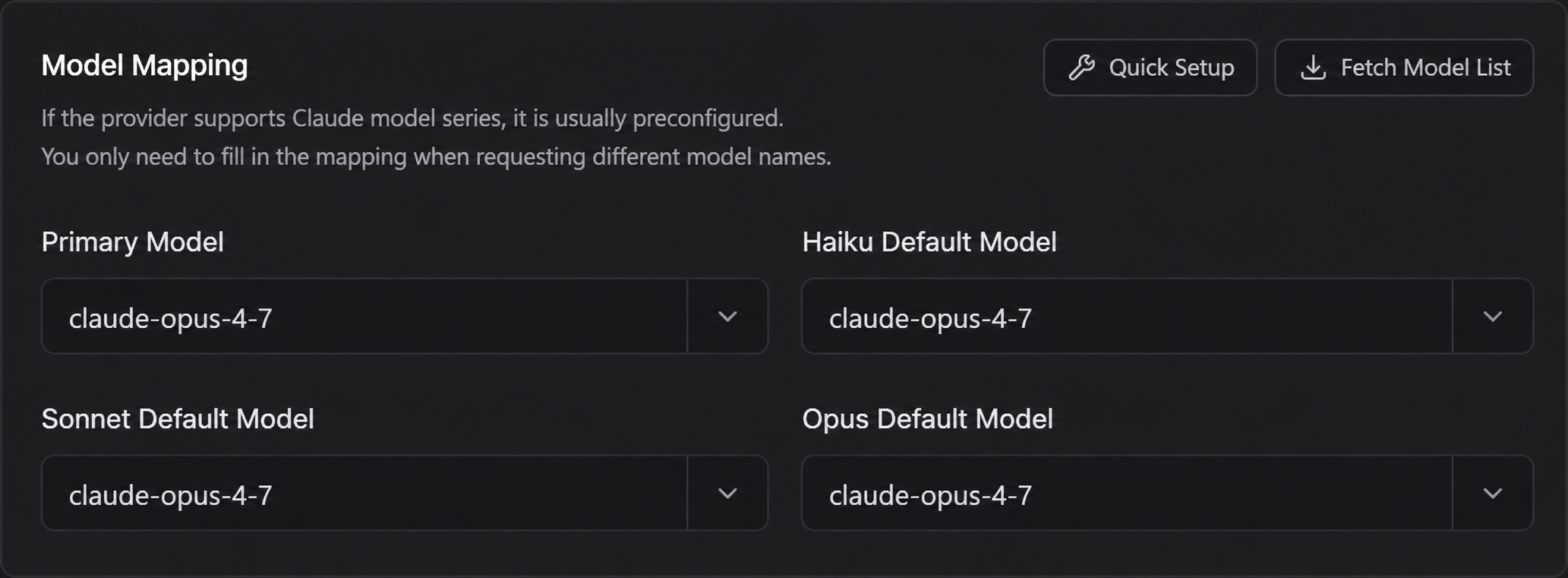
Model mapping
Copy model IDs from your ClaudeAPI console into CC Switch model mapping:
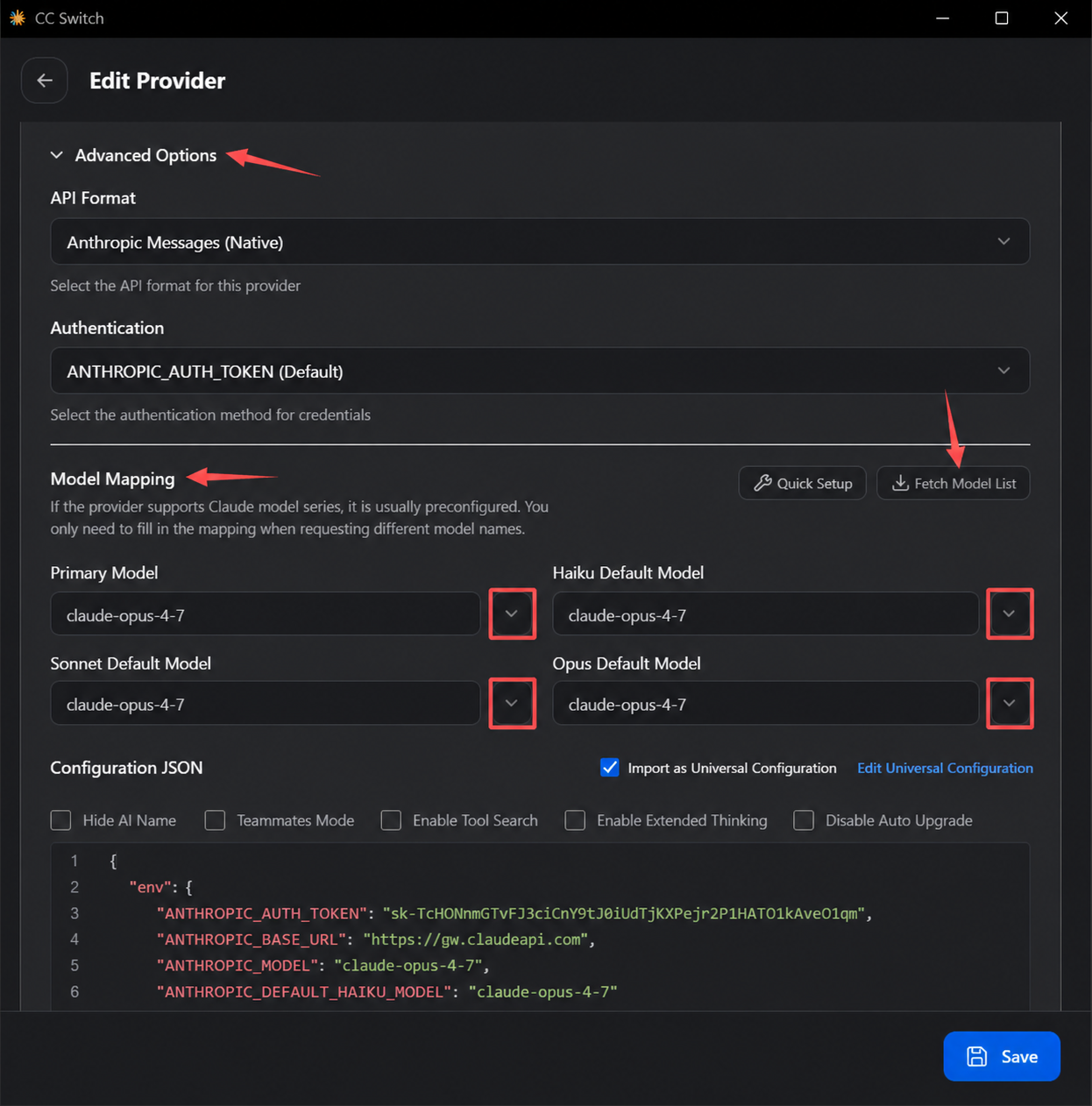
- Primary / default: your usual default
- Sonnet default:
claude-sonnet-4-6 - Opus default:
claude-opus-4-7orclaude-opus-4-6 - Haiku default:
claude-haiku-4-5-20251001
Use Anthropic Messages API format; keep default auth field names. Save, then call Claude models.
Single-model only:
Quick switch from the system tray
CC Switch lives in the tray. With multiple providers (e.g. ClaudeAPI.com vs Anthropic direct), right-click the tray icon to switch without opening the main window.
Multiple providers example
| Provider name | Purpose |
|---|---|
ClaudeAPI-Sonnet |
Daily coding (best cost/performance) |
ClaudeAPI-Opus |
Architecture / hard reasoning |
ClaudeAPI-Haiku |
Fast, simple tasks |
Same setup—different default model per provider.
FAQ
Provider switch did not take effect?
Restart the terminal after switching. If you use CC Switch’s local proxy mode, some setups support hot switch without restart.
Wrong ANTHROPIC_BASE_URL?
You may see 401 or connection errors. Use https://gw.claudeapi.com (gw, not api).
Lost API key?
Create a new key in the ClaudeAPI console and revoke the old one.
Does CC Switch store my key? Is it safe?
Keys live in a local SQLite DB (~/.cc-switch/cc-switch.db)—not on CC Switch’s servers. Cloud sync (Dropbox / OneDrive / iCloud / WebDAV) stores data in your cloud account; the CC Switch project does not hold your secrets.
One key for OpenClaw, OpenCode, Hermes, and Claude Code?
Yes—one ClaudeAPI key can back multiple tools after each CLI is installed and CC Switch writes the correct per-app config when you activate the provider.
Summary
Your stack:
- ClaudeAPI.com — quota and Claude model access (gateway, not Anthropic official)
- CC Switch — config management without hand-editing files
- Your CLIs — Claude Code, OpenCode, OpenClaw, Hermes as needed
Typical setup is under five minutes. Switching providers is one click from the tray.
CTA
Register on ClaudeAPI.com · Console · CC Switch releases
Questions? Visit the ClaudeAPI.com community or CC Switch GitHub Issues.
Related reading (update links in CMS):
- Claude Code installation guide
- Claude API pricing guide
- Claude Code productivity tips
ClaudeAPI.com is a third-party API gateway. CC Switch is an independent open-source project—not affiliated with Anthropic.