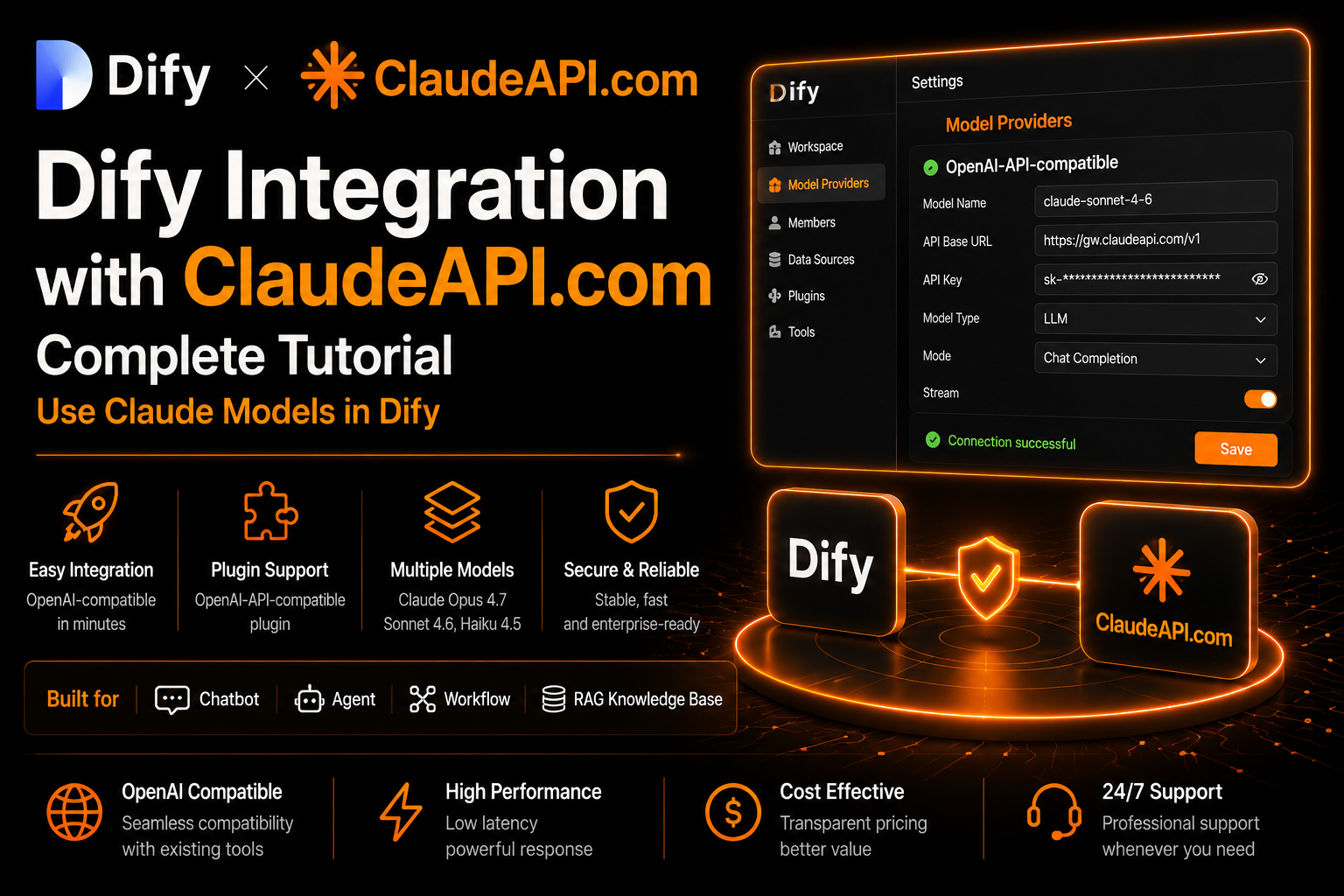
Dify is one of the most popular open-source platforms for building LLM applications, supporting Chatbots, Agents, Workflows, knowledge-base RAG, and more. A common question from developers is: Can I use Claude models in Dify?
Yes — and the setup is straightforward.
ClaudeAPI.com provides an OpenAI-compatible API format, while Dify includes a built-in OpenAI-API-compatible plugin. That makes the two a natural fit. This guide walks you through the full setup process in the most direct way possible.
Prerequisites
Before you start, make sure you have the following:
| Item | Description |
|---|---|
| Dify account | Dify Cloud or self-hosted Dify |
| ClaudeAPI.com API Key | Get it from the dashboard |
| API Base URL | https://gw.claudeapi.com/v1 |
| Model ID | For example, claude-sonnet-4-6 or claude-opus-4-7 |
Step 1: Choose How You Want to Use Dify
Option 1: Dify Cloud
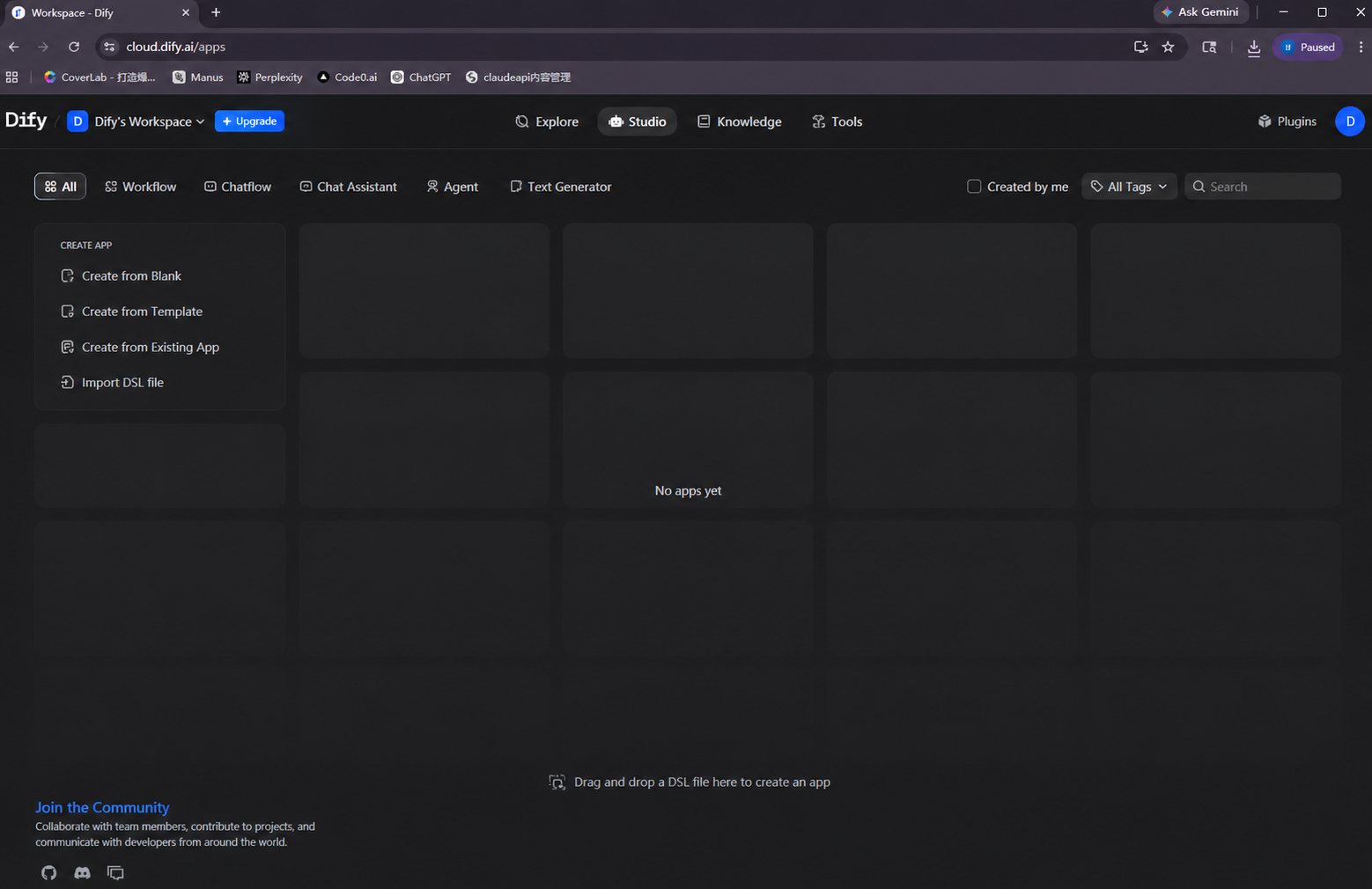
For beginners, Dify Cloud is the easiest option. Go to https://dify.ai, create an account, and sign in. No server or Docker setup is required.
Option 2: Self-Host with Docker
If you have your own server and want full control over your data, you can self-host Dify. Official documentation: Docker Compose Deployment Guide
git clone https://github.com/langgenius/dify.git
cd dify/docker
cp .env.example .env
docker compose up -d
git clone https://github.com/langgenius/dify.git
cd dify/docker
cp .env.example .env
docker compose up -d
After startup, visit http://your-server-ip/install to complete initialization. For local deployment, visit http://localhost/install.
Minimum requirements: CPU ≥ 2 cores, memory ≥ 4 GiB.
Step 2: Install the OpenAI-API-compatible Plugin
After logging in to Dify, go to:
Avatar in the upper-right corner → Settings → Model Providers
Avatar in the upper-right corner → Settings → Model Providers
Find OpenAI-API-compatible in the plugin list and install it.
Plugin page: https://marketplace.dify.ai/plugin/langgenius/openai_api_compatible
This plugin is the key to connecting ClaudeAPI.com. It allows Dify to call any API endpoint that follows the OpenAI-compatible format.
Step 3: Add a ClaudeAPI.com Model
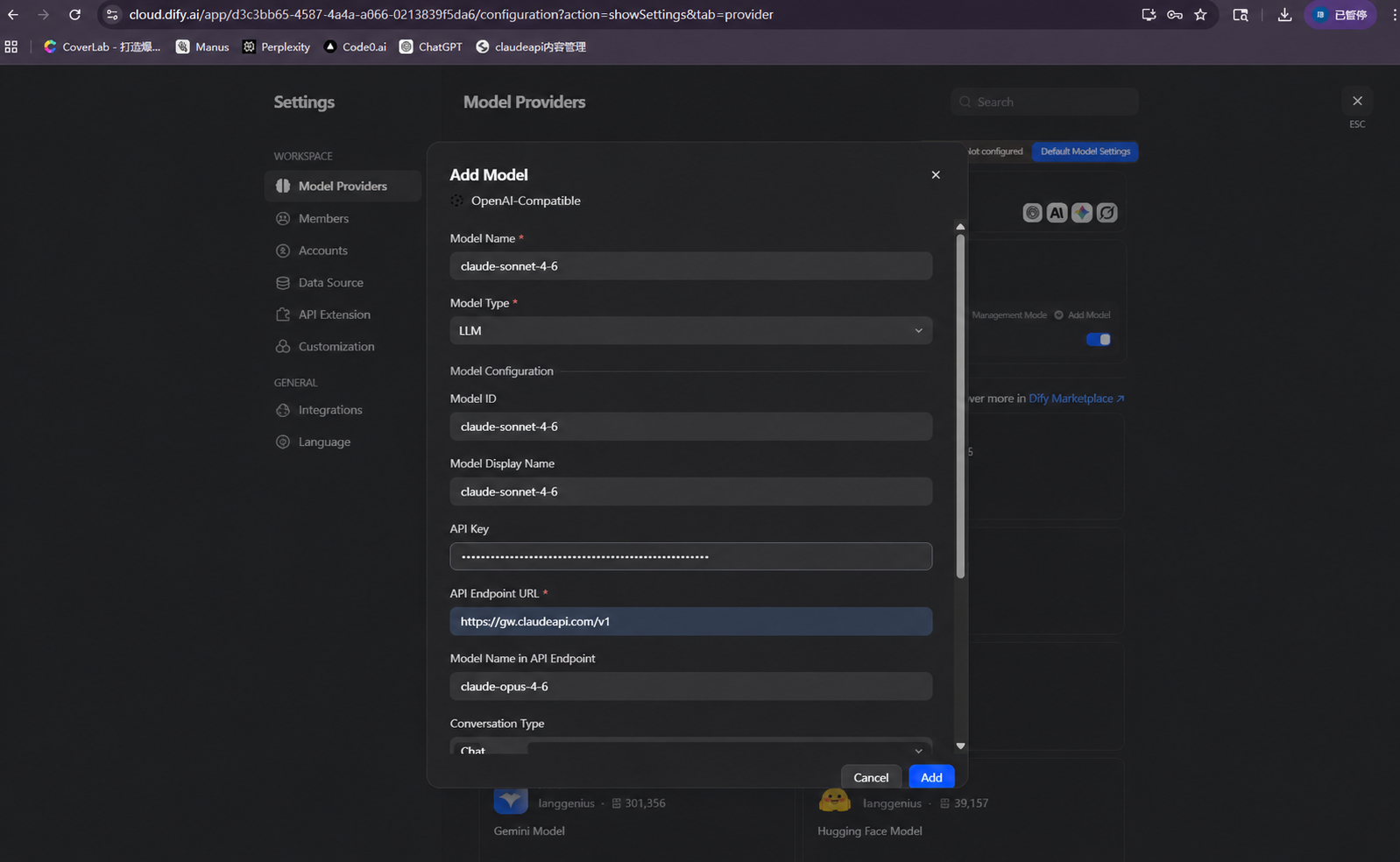
Open the OpenAI-API-compatible plugin, click Add Model, and fill in the fields as follows:
| Field | Value |
|---|---|
| Model Type | LLM |
| Model Name | claude-sonnet-4-6 |
| API Key | Your ClaudeAPI.com API Key |
| API Endpoint URL | https://gw.claudeapi.com/v1 |
| Completion mode | Chat |
| Stream | Recommended to enable |
The model ID must be exact. Do not use Chinese names, display names, or abbreviations:
✅ claude-sonnet-4-6
✅ claude-opus-4-7
✅ claude-haiku-4-5-20251001

❌ Claude Sonnet
❌ Claude 4.6
❌ sonnet-4
✅ claude-sonnet-4-6
✅ claude-opus-4-7
✅ claude-haiku-4-5-20251001

❌ Claude Sonnet
❌ Claude 4.6
❌ sonnet-4
After saving, enter a test prompt to confirm the model responds correctly:
Hello, please introduce yourself in one sentence.
Hello, please introduce yourself in one sentence.
Step 4: Use Claude in Your Dify App
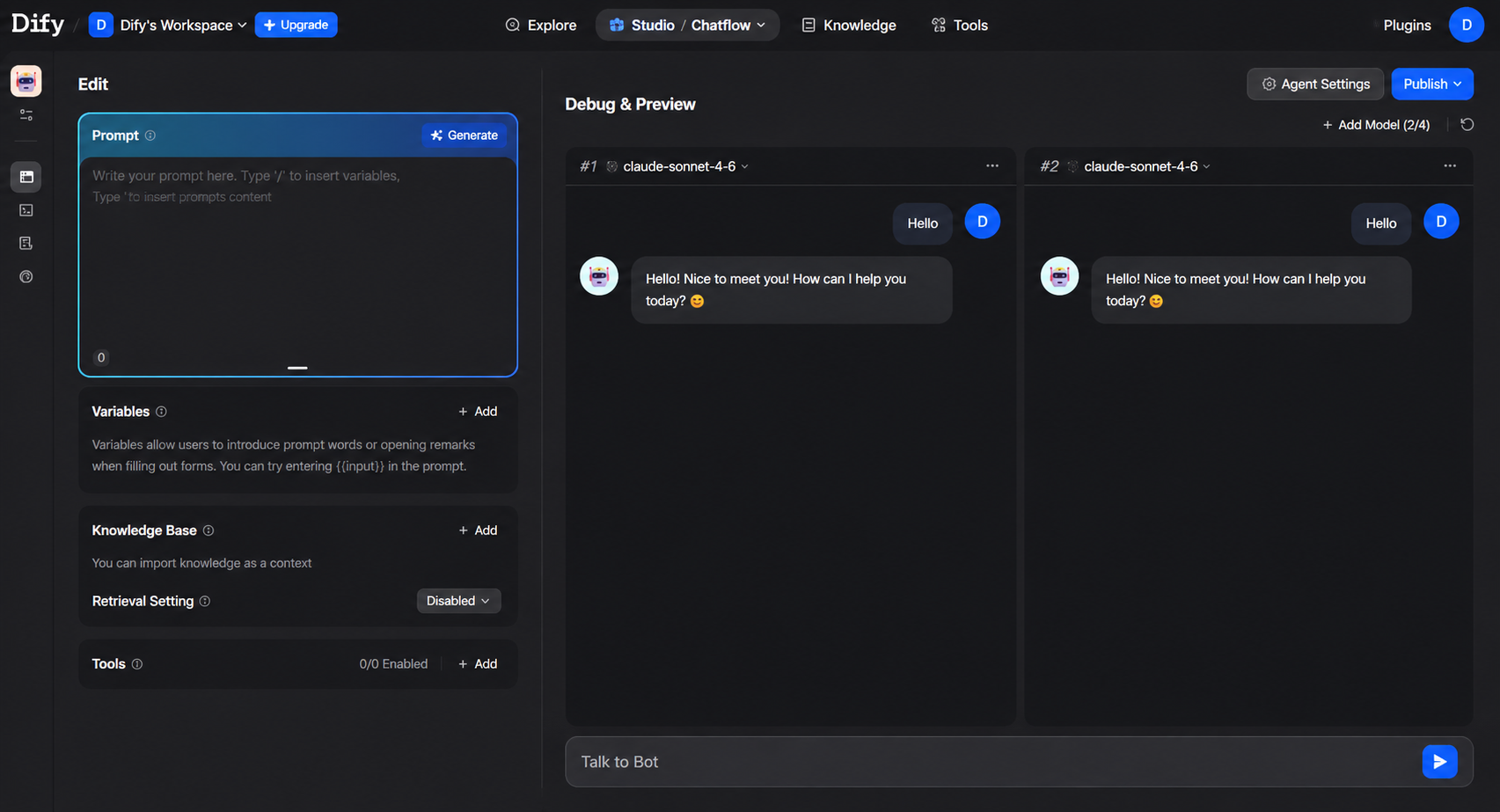
Return to the Dify home page and create an app:
Create App → Chatbot / Agent / Workflow
Create App → Chatbot / Agent / Workflow
Open the orchestration page, select the claude-sonnet-4-6 model you just added, and start building your application.
Recommended Parameter Settings
| Scenario | Temperature | Max Tokens |
|---|---|---|
| General chatbot | 0.7 | 4096 |
| Knowledge-base RAG Q&A | 0.2 – 0.5 | 4096 |
| Code generation / long-document analysis | 0.2 – 0.4 | 8192 |
Common Errors and Quick Fixes
401 Unauthorized
The API Key is incorrect. Check whether the key was copied completely, whether there are leading or trailing spaces, and whether the key is still valid.
model not found
The model ID is incorrect. Compare it against the model IDs listed above.
No response / timeout
The Base URL is missing /v1.
❌ https://gw.claudeapi.com
✅ https://gw.claudeapi.com/v1
❌ https://gw.claudeapi.com
✅ https://gw.claudeapi.com/v1
Plugin installation fails in self-hosted Dify
Your server needs access to marketplace.dify.ai and GitHub. Check the server network, proxy configuration, and make sure your Dify version is not too old.
Streaming output behaves unexpectedly
Disable Stream first and test a normal response. If the normal response works, re-enable Stream and continue debugging.
Verify Network Connectivity for Self-Hosted Dify
If calls fail after a Docker self-hosted setup, first verify from the server that the API endpoint is reachable:
curl https://gw.claudeapi.com/v1/models \
  -H "Authorization: Bearer sk-your-key"
curl https://gw.claudeapi.com/v1/models \
  -H "Authorization: Bearer sk-your-key"
If the model list is returned, the network connection is working and the issue is likely in your Dify configuration. If there is no response, check your server firewall, DNS, Docker container networking, or proxy settings.
Configuration Cheat Sheet
| Item | Value |
|---|---|
| Provider | OpenAI-API-compatible |
| API Endpoint URL | https://gw.claudeapi.com/v1 |
| API Key | Get it from the ClaudeAPI.com dashboard |
| Recommended models | claude-sonnet-4-6 / claude-opus-4-7 |
| Stream | Recommended to enable |
| Dify Cloud | dify.ai |
| Dify GitHub | github.com/langgenius/dify |
| Dify Plugin Marketplace | marketplace.dify.ai |
| ClaudeAPI.com | www.claudeapi.com |