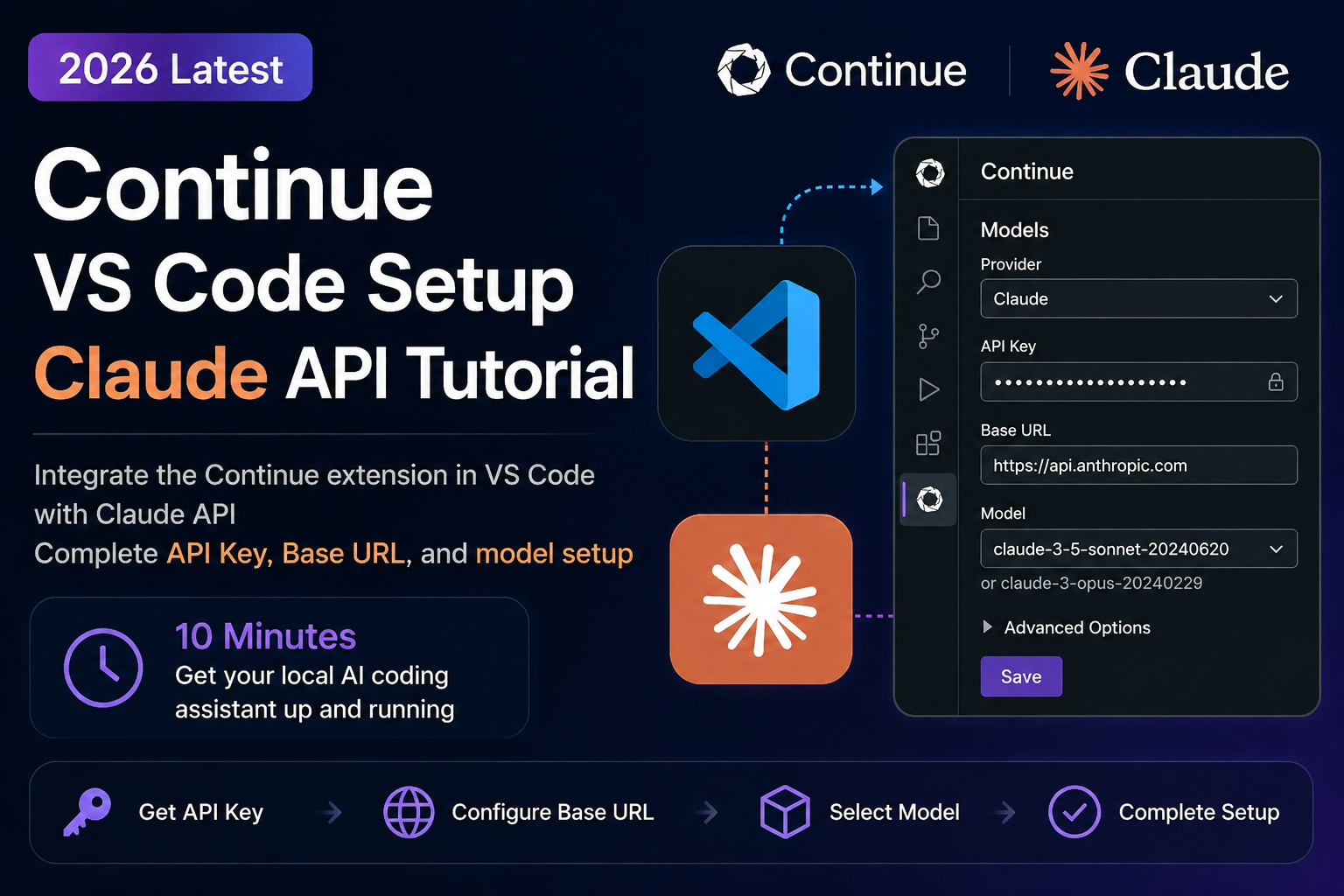
Continue is one of the most flexible open-source AI coding extensions for VS Code. It supports chat, inline edits, agent-style coding workflows, and tab autocomplete, while letting you choose the model provider behind the scenes.
This guide shows how to connect Continue to Claude models through the OpenAI-compatible endpoint provided by claudeapi.com. The setup takes about 10 minutes: install Continue, create an API key, add a model configuration, then test chat and autocomplete inside VS Code.
One important 2026 update: Continue now recommends config.yaml for new configurations. Older tutorials often use config.json; that format can still exist in some installs, but Continue’s current documentation treats YAML as the preferred path. This guide uses YAML first and includes a short legacy JSON note near the end.
What you need
Before starting, make sure you have:
- VS Code installed
- the Continue extension installed
- a ClaudeAPI account
- an API key from the ClaudeAPI console
- a few minutes to edit
~/.continue/config.yaml
The examples below use ClaudeAPI’s OpenAI-compatible API base:
https://gw.claudeapi.com/v1
https://gw.claudeapi.com/v1
Step 1: Install Continue in VS Code
Open VS Code and install Continue:
- Open the Extensions panel with
Ctrl+Shift+Xon Windows/Linux orCmd+Shift+Xon macOS. - Search for
Continue. - Install the extension published by Continue Dev Inc.
- Open the Continue panel from the left activity bar.
Continue will create its global configuration directory when it starts.
Configuration directory:
macOS / Linux: ~/.continue
Windows: %USERPROFILE%\.continue
macOS / Linux: ~/.continue
Windows: %USERPROFILE%\.continue
For a new 2026 setup, create or edit:
~/.continue/config.yaml
~/.continue/config.yaml
On Windows, that usually means:
C:\Users\<your-username>\.continue\config.yaml
C:\Users\<your-username>\.continue\config.yaml
Step 2: Create a ClaudeAPI key
Go to claudeapi.com, create an account, and generate an API key in the dashboard.
Use a key that starts with sk-, then keep it somewhere safe. Do not commit it to Git, paste it into screenshots, or share it in issue reports.
For local testing, you can paste the key directly into your Continue config. For team or production setups, consider using environment variables or a secrets manager if your workflow supports it.
Step 3: Add Claude models to config.yaml
Continue uses model roles to decide where each model can be used. For example:
chatfor the chat paneleditfor inline editsapplyfor applying generated code changesautocompletefor tab completion
Here is a practical multi-model setup for ClaudeAPI:
name: ClaudeAPI Continue Config
version: 1.0.0
schema: v1

models:
  - name: Claude Sonnet 4.6
    provider: openai
    model: claude-sonnet-4-6
    apiKey: your-api-key-here
    apiBase: https://gw.claudeapi.com/v1
    roles:
      - chat
      - edit
      - apply

  - name: Claude Opus 4.8
    provider: openai
    model: claude-opus-4-8
    apiKey: your-api-key-here
    apiBase: https://gw.claudeapi.com/v1
    roles:
      - chat
      - edit
      - apply

  - name: Claude Haiku 4.5 Autocomplete
    provider: openai
    model: claude-haiku-4-5-20251001
    apiKey: your-api-key-here
    apiBase: https://gw.claudeapi.com/v1
    roles:
      - autocomplete
    autocompleteOptions:
      maxPromptTokens: 2048
      debounceDelay: 250
name: ClaudeAPI Continue Config
version: 1.0.0
schema: v1

models:
  - name: Claude Sonnet 4.6
    provider: openai
    model: claude-sonnet-4-6
    apiKey: your-api-key-here
    apiBase: https://gw.claudeapi.com/v1
    roles:
      - chat
      - edit
      - apply

  - name: Claude Opus 4.8
    provider: openai
    model: claude-opus-4-8
    apiKey: your-api-key-here
    apiBase: https://gw.claudeapi.com/v1
    roles:
      - chat
      - edit
      - apply

  - name: Claude Haiku 4.5 Autocomplete
    provider: openai
    model: claude-haiku-4-5-20251001
    apiKey: your-api-key-here
    apiBase: https://gw.claudeapi.com/v1
    roles:
      - autocomplete
    autocompleteOptions:
      maxPromptTokens: 2048
      debounceDelay: 250
Replace your-api-key-here with the API key from your ClaudeAPI dashboard.
This configuration gives you:
- Sonnet 4.6 for everyday coding, reviews, explanations, and refactoring
- Opus 4.8 for difficult architecture work or long-context reasoning
- Haiku 4.5 for fast autocomplete where latency matters more than deep reasoning
Step 4: Pick the right model for each job
You do not need to use the same model for every coding task. A good Continue setup routes work by complexity.
| Model | Use it for | Why |
|---|---|---|
claude-haiku-4-5-20251001 |
Tab autocomplete, simple questions, quick transformations | Low latency and low cost |
claude-sonnet-4-6 |
Code review, daily coding help, API explanations, medium refactors | Strong default balance |
claude-opus-4-8 |
Complex refactors, long-context analysis, architecture decisions | Best reserved for harder tasks |
The source article lists claudeapi.com prices as:
| Model | ClaudeAPI input / output price |
|---|---|
claude-haiku-4-5-20251001 |
$0.8 / $4 per MTok |
claude-sonnet-4-6 |
$2.4 / $12 per MTok |
claude-opus-4-8 |
$4 / $20 per MTok |
Prices and model availability can change, so check the ClaudeAPI console before publishing internal docs or setting a team budget.
Step 5: Enable tab autocomplete
Autocomplete is latency-sensitive. In most workflows, you want a smaller and faster model for completions than for complex chat.
In the YAML example above, Haiku is assigned only to the autocomplete role:
  - name: Claude Haiku 4.5 Autocomplete
    provider: openai
    model: claude-haiku-4-5-20251001
    apiKey: your-api-key-here
    apiBase: https://gw.claudeapi.com/v1
    roles:
      - autocomplete
    autocompleteOptions:
      maxPromptTokens: 2048
      debounceDelay: 250
  - name: Claude Haiku 4.5 Autocomplete
    provider: openai
    model: claude-haiku-4-5-20251001
    apiKey: your-api-key-here
    apiBase: https://gw.claudeapi.com/v1
    roles:
      - autocomplete
    autocompleteOptions:
      maxPromptTokens: 2048
      debounceDelay: 250
After saving the file, return to VS Code and start typing in a code file. Continue should begin showing inline suggestions. Press Tab to accept a suggestion or Esc to dismiss it.
If autocomplete feels slow, reduce maxPromptTokens further or keep autocomplete on Haiku while using Sonnet or Opus only for chat and edits.
Step 6: Test the setup
After saving config.yaml, restart VS Code or reload the Continue extension if the model list does not refresh automatically.
Then test chat:
Write a Python bubble sort function and explain the time complexity.
Write a Python bubble sort function and explain the time complexity.
Check that:
- the Continue model dropdown shows your configured Claude models
- the chat response returns normally
- inline edits work on selected code
- autocomplete appears while editing a supported file type
If chat works but autocomplete does not, the model roles are the first thing to inspect. The autocomplete model must include:
roles:
  - autocomplete
roles:
  - autocomplete
Optional: use a shared coding rule
Continue’s current YAML config supports a top-level rules field for shared behavior. Use this when you want all model responses to follow your team’s style.
For example:
rules:
  - Always prefer TypeScript examples unless another language is requested.
  - Add JSDoc comments for exported functions.
  - Keep answers concise and include runnable code when possible.
rules:
  - Always prefer TypeScript examples unless another language is requested.
  - Add JSDoc comments for exported functions.
  - Keep answers concise and include runnable code when possible.
This is the YAML-era replacement for many older systemMessage examples in config.json.
Legacy option: config.json
If your Continue installation still uses config.json, this older style may work:
{
  "models": [
    {
      "title": "Claude Sonnet 4.6",
      "provider": "openai",
      "model": "claude-sonnet-4-6",
      "apiKey": "your-api-key-here",
      "apiBase": "https://gw.claudeapi.com/v1"
    }
  ],
  "tabAutocompleteModel": {
    "title": "Claude Haiku 4.5 Autocomplete",
    "provider": "openai",
    "model": "claude-haiku-4-5-20251001",
    "apiKey": "your-api-key-here",
    "apiBase": "https://gw.claudeapi.com/v1"
  },
  "tabAutocompleteOptions": {
    "maxPromptTokens": 2048
  }
}
{
  "models": [
    {
      "title": "Claude Sonnet 4.6",
      "provider": "openai",
      "model": "claude-sonnet-4-6",
      "apiKey": "your-api-key-here",
      "apiBase": "https://gw.claudeapi.com/v1"
    }
  ],
  "tabAutocompleteModel": {
    "title": "Claude Haiku 4.5 Autocomplete",
    "provider": "openai",
    "model": "claude-haiku-4-5-20251001",
    "apiKey": "your-api-key-here",
    "apiBase": "https://gw.claudeapi.com/v1"
  },
  "tabAutocompleteOptions": {
    "maxPromptTokens": 2048
  }
}
For a new setup, prefer config.yaml. Continue’s own migration guide says that if config.yaml exists, it is loaded instead of config.json.
Troubleshooting
401 Unauthorized
Your API key is missing, invalid, or copied with extra whitespace. Generate a new key in the ClaudeAPI dashboard and paste it again.
404 Not Found
Check the API base:
https://gw.claudeapi.com/v1
https://gw.claudeapi.com/v1
Make sure it includes /v1.
The model does not appear in Continue
Check these fields:
provider: openai
model: claude-sonnet-4-6
apiBase: https://gw.claudeapi.com/v1
roles:
  - chat
provider: openai
model: claude-sonnet-4-6
apiBase: https://gw.claudeapi.com/v1
roles:
  - chat
For autocomplete, make sure the model has the autocomplete role.
Model name errors
Model IDs must match the names supported by ClaudeAPI. For example, use:
claude-haiku-4-5-20251001
claude-haiku-4-5-20251001
Do not shorten it to haiku.
Autocomplete is slow
Use Haiku for autocomplete and reduce prompt size:
autocompleteOptions:
  maxPromptTokens: 2048
  debounceDelay: 250
autocompleteOptions:
  maxPromptTokens: 2048
  debounceDelay: 250
Also avoid using reasoning-heavy models for autocomplete. Continue’s autocomplete documentation notes that thinking-style models are usually not suitable for speed-sensitive completions.
Windows path issues
On Windows, the config directory is:
C:\Users\<your-username>\.continue
C:\Users\<your-username>\.continue
If the folder does not exist, restart VS Code after installing Continue. The extension should create it automatically.
Related guides
- Claude API pricing and model selection guide
- Cursor Claude API setup guide
- Migrate from OpenAI API to Claude API
- Claude API cost estimation and budget guide
Start using Claude in VS Code
With Continue and ClaudeAPI, you can keep VS Code as your main editor while routing chat, edits, and autocomplete to Claude models through an OpenAI-compatible endpoint.
Start with Sonnet for everyday coding, add Haiku for autocomplete, and keep Opus available for difficult refactors or long-context analysis. That gives you a practical balance between speed, cost, and quality.
Create an API key at claudeapi.com, paste it into your Continue config, and run your first chat request from VS Code. If you run into setup issues, check the ClaudeAPI docs or contact support.
Sources
- Continue config.yaml reference
- Continue migration guide from config.json to config.yaml
- Continue autocomplete setup guide
- Anthropic Claude pricing documentation
Disclosure: This article was translated and adapted with AI assistance, then reviewed for technical accuracy and clarity before publication.