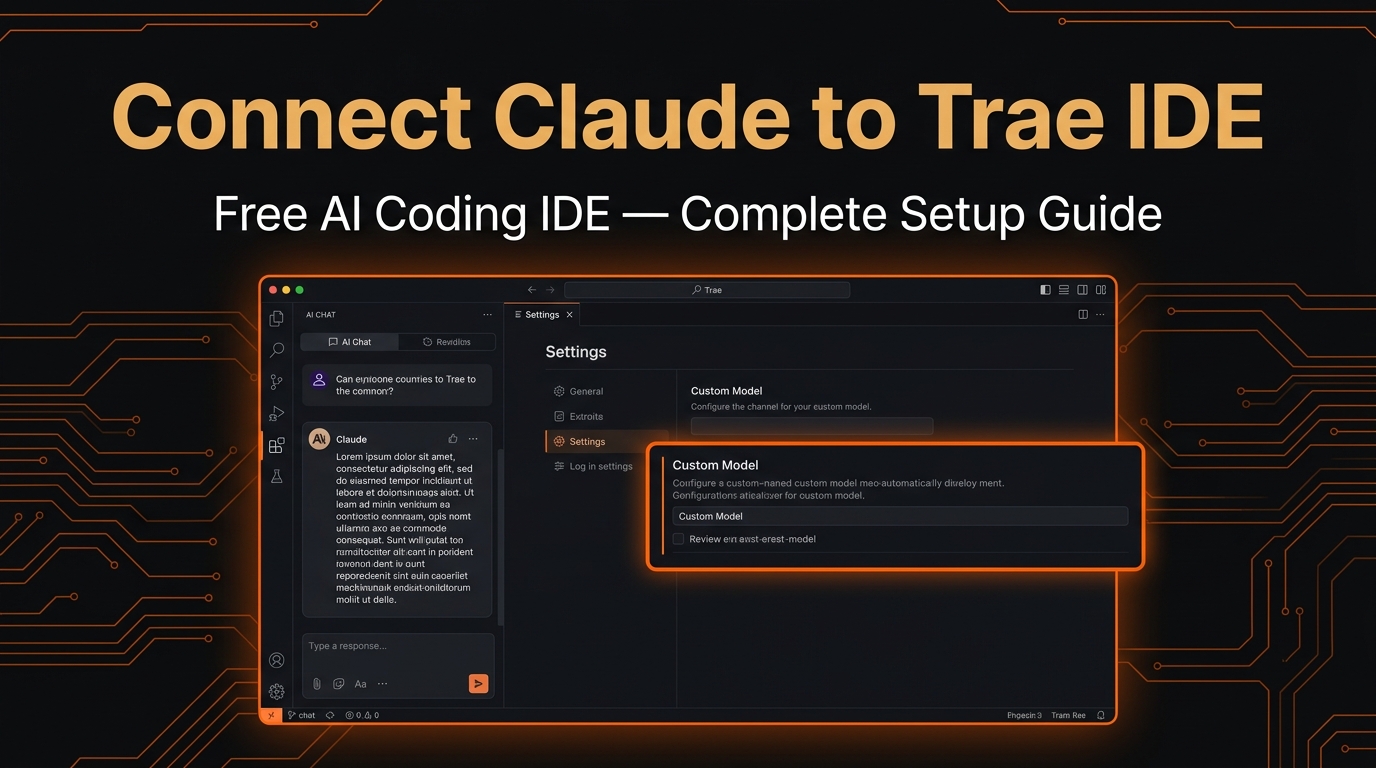
How to Connect Claude API to Trae IDE: Complete Setup Guide (2026)
A free AI-powered coding IDE by ByteDance — get access to top-tier Claude models in under 5 minutes, accessible from anywhere with no restrictions.
What Is Trae?
Trae (formerly Trea) is a native AI coding IDE built by ByteDance, based on the VS Code engine. It comes with built-in AI chat, code completion, and intelligent refactoring capabilities.
Think of it as a Cursor alternative — with a similar feature set, but completely free for core functionality.
Why Connect ClaudeAPI to Trae?
Trae’s built-in models are decent but limited. By connecting Claude Sonnet / Opus via ClaudeAPI, you unlock:
- ✅ Significantly better code generation quality
- ✅ More reliable handling of complex refactoring tasks
- ✅ More accurate long-context understanding
Prerequisites
Get Your ClaudeAPI Key
- Go to console.claudeapi.com and sign up
- Navigate to the API Keys page → Create New Key
- Copy and save it immediately (it’s only shown once)
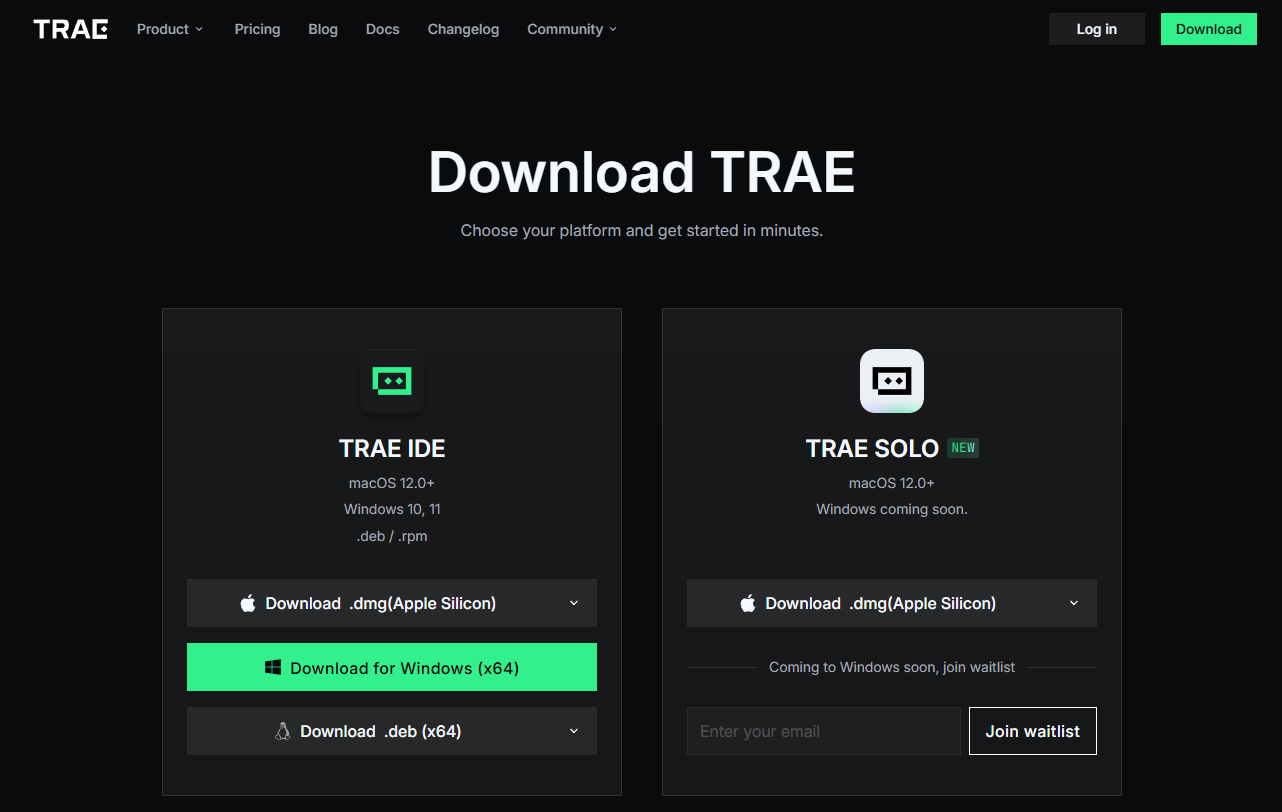
Step 1: Download & Install Trae
Head to the official site: trae.ai
Choose your platform (Windows / macOS) and install
Step 2: Configure the Model
Windows: Install the Cline Extension
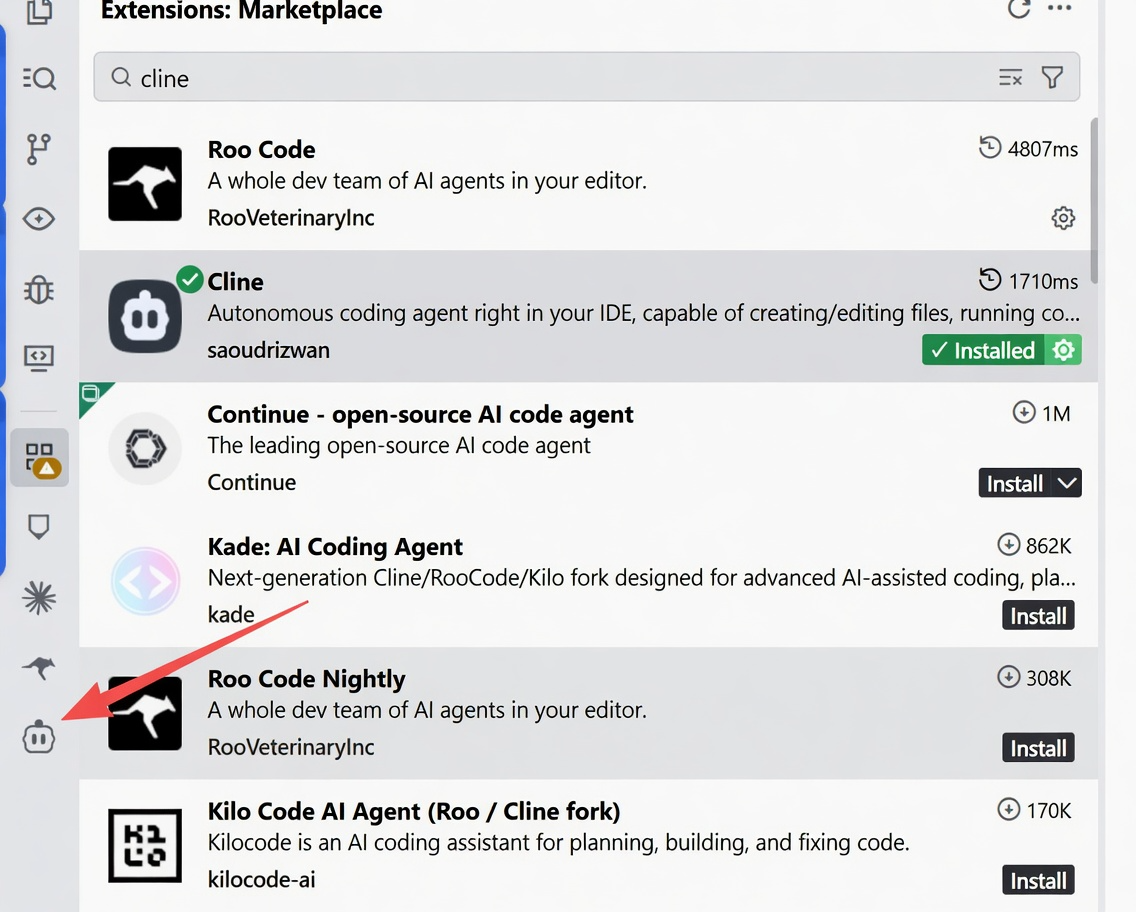
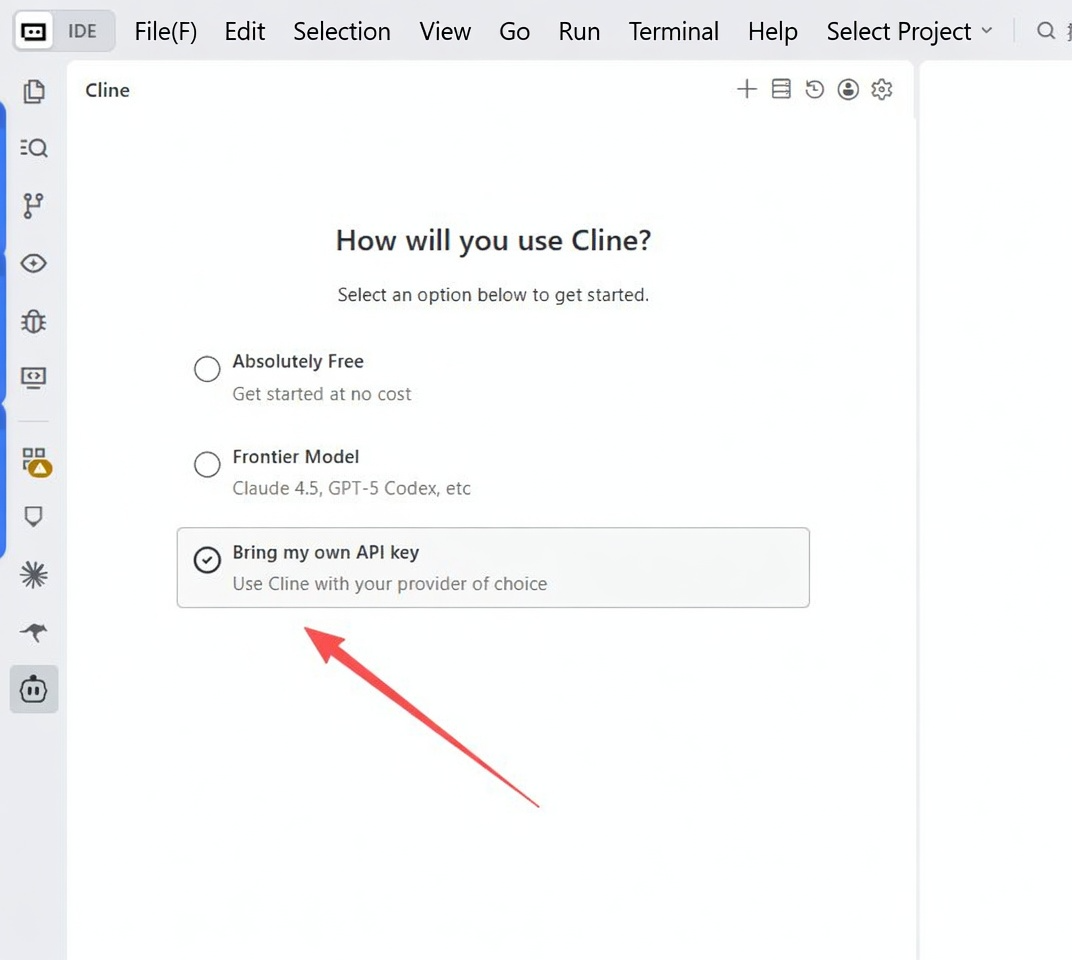
mac:
- Open Trae, click the Settings icon ⚙️ in the bottom-left corner
- Select “AI Configuration” or “Model Settings”
- Find the “Custom Provider” option
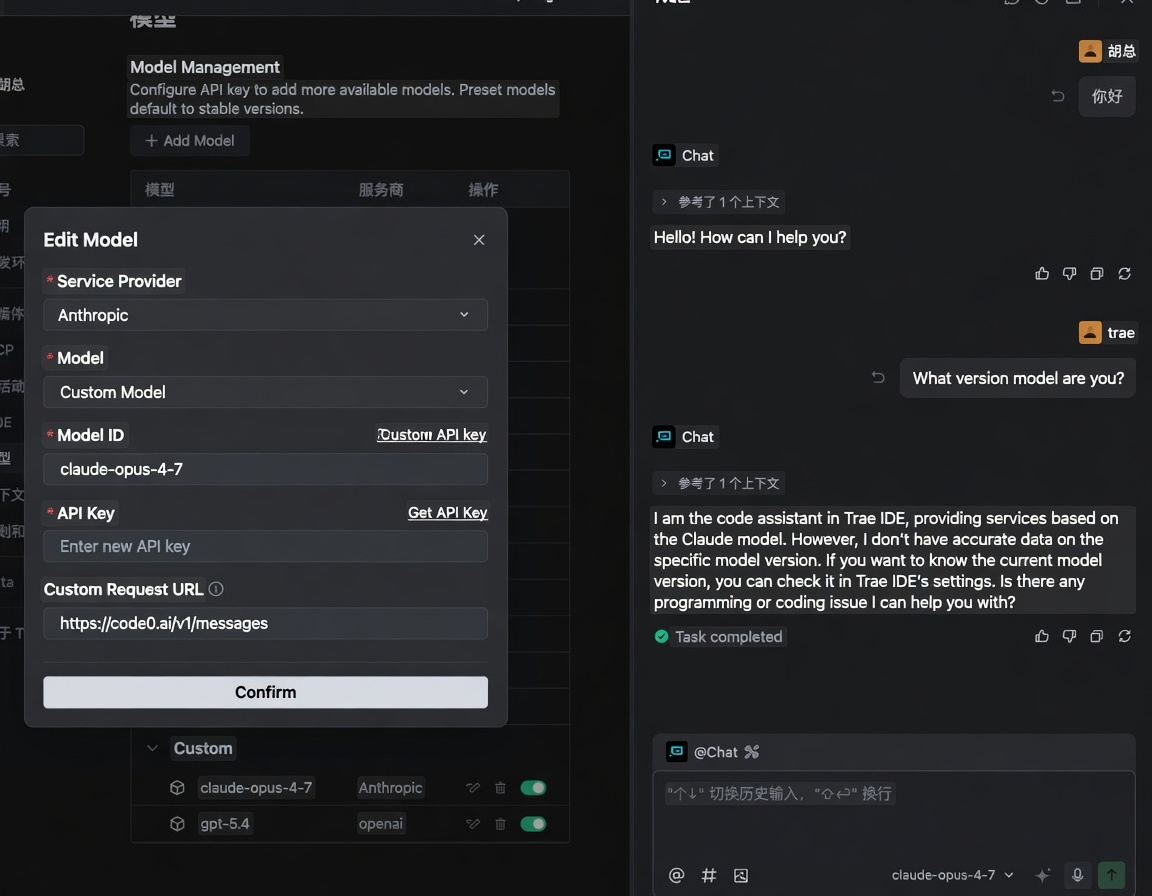
Step 3: Configure ClaudeAPI
In the custom model configuration, enter the following:
| Setting | Value |
|---|---|
| Provider Type | Anthropic / Claude |
| API Base URL | https://gw.claudeapi.com |
| API Key | Your ClaudeAPI key |
| Default Model | claude-sonnet-4-6 |
⚠️ If your IDE only shows an “OpenAI Compatible” option, set the Base URL to
https://gw.claudeapi.com/v1
Step 4: Choose a Model
Models available through ClaudeAPI:
| Model | Pricing (Input / Output) | Best For |
|---|---|---|
claude-sonnet-4-6 |
$2.40 / $12 | Everyday coding, code review (recommended) |
claude-opus-4-7 |
$4 / $20 | Complex architecture, hard debugging |
claude-haiku-4-5-20251001 |
$0.80 / $4 | Quick completions, simple Q&A |
Our recommendation: Start with claude-sonnet-4-6 — it offers the best balance of performance and cost.
Step 5: Verify Your Setup
-
Click Save or Test Connection
-
Open any project file
3.Trigger the AI chat with the shortcut (usually Ctrl/Cmd + L)
- Enter a test prompt:
Explain the main functionality of this file
Explain the main functionality of this file
If the model responds normally, you’re all set! ✅
Core Features
1. AI Chat
Press Ctrl/Cmd + L to open the chat panel. Use it to:
- Ask questions about your code
- Generate code snippets
- Get explanations of complex logic
2. Inline Edit
Select code → press → press Ctrl/Cmd + K → type your instruction:
- “Optimize the performance of this block”
- “Add error handling”
- “Convert to TypeScript”
3. Autocomplete
While you code, Claude automatically provides intelligent completions in real time. Just press Tab to accept.
4. Context References
Use the @ symbol in chat to pull in context:
@file- Reference the current file@folder- Reference an entire folder@selection- Reference selected code
Advanced Configuration
Switching Models
You can quickly switch models by clicking the model name at the top of the chat panel:
-
Simple questions → Haiku (fastest response)
-
Day-to-day development → Sonnet (balanced)
-
Complex tasks → Opus (most capable)
Custom System Prompt
Some versions support setting a default System Prompt in your configuration. For example:
You are a senior software engineer proficient in Python and TypeScript.
Keep responses concise. Code should include comments and prioritize readability and maintainability.
You are a senior software engineer proficient in Python and TypeScript.
Keep responses concise. Code should include comments and prioritize readability and maintainability.
Config File Location
Trae configuration files are typically located at:
- Windows:
%APPDATA%\Trae\settings.json - macOS:
~/Library/Application Support/Trae/settings.json
FAQ
Q: Getting an “Invalid API Key” error?
Check the following:
- Make sure the key was copied in full (no extra whitespace)
- Verify the Base URL is correct(
https://gw.claudeapi.com) - Confirm your ClaudeAPI account has sufficient balance
Q: Chat responses are slow?
- Switch to the Haiku model for the fastest response times
- Check your network connection
- Reduce the number of context files referenced in the conversation
Q: Autocomplete not working?
-
Make sure AI Autocomplete is enabled in Settings
-
Some file types may be disabled by default — you’ll need to enable them manually
Q: Trae vs. Cursor — which one should I pick?
| Aspect | Trae | Cursor |
|---|---|---|
| Price | Free | Pro $20/month |
| Global Access | Reliable anywhere | Requires stable connection |
| Custom API | Supported natively | Requires extension (Roo Code) |
| Ecosystem Maturity | Newer | More mature |
Bottom line: On a budget or want a zero-friction setup? Go with Trae. Want the most polished experience and don’t mind paying? Go with Cursor + Roo Code.
TL;DR — Quick Setup Checklist
| Step | Action |
|---|---|
| 1 | Sign up for ClaudeAPI and grab your API key |
| 2 | Download and install Trae |
| 3 | Go to Settings → AI Configuration → Custom Model |
| 4 | Enter your Base URL + API Key + Model name |
| 5 | Send a test message to confirm everything works |
Pairing Trae + ClaudeAPI gives you a top-tier AI coding experience — accessible from anywhere with no VPN needed, and with flexible pay-as-you-go pricing.